
HubSpot Integration
Setting Up the Integration from Fathom
You can connect HubSpot from your Fathom settings (steps below) or by clicking Install on Fathom’s listing in the HubSpot App Marketplace. Both routes need a Fathom account and a HubSpot Admin. For the Marketplace route, see the section "How do I install Fathom from the HubSpot App Marketplace?" below.
Step 1
Log in to Fathom and navigate to the Settings page.
Step 2
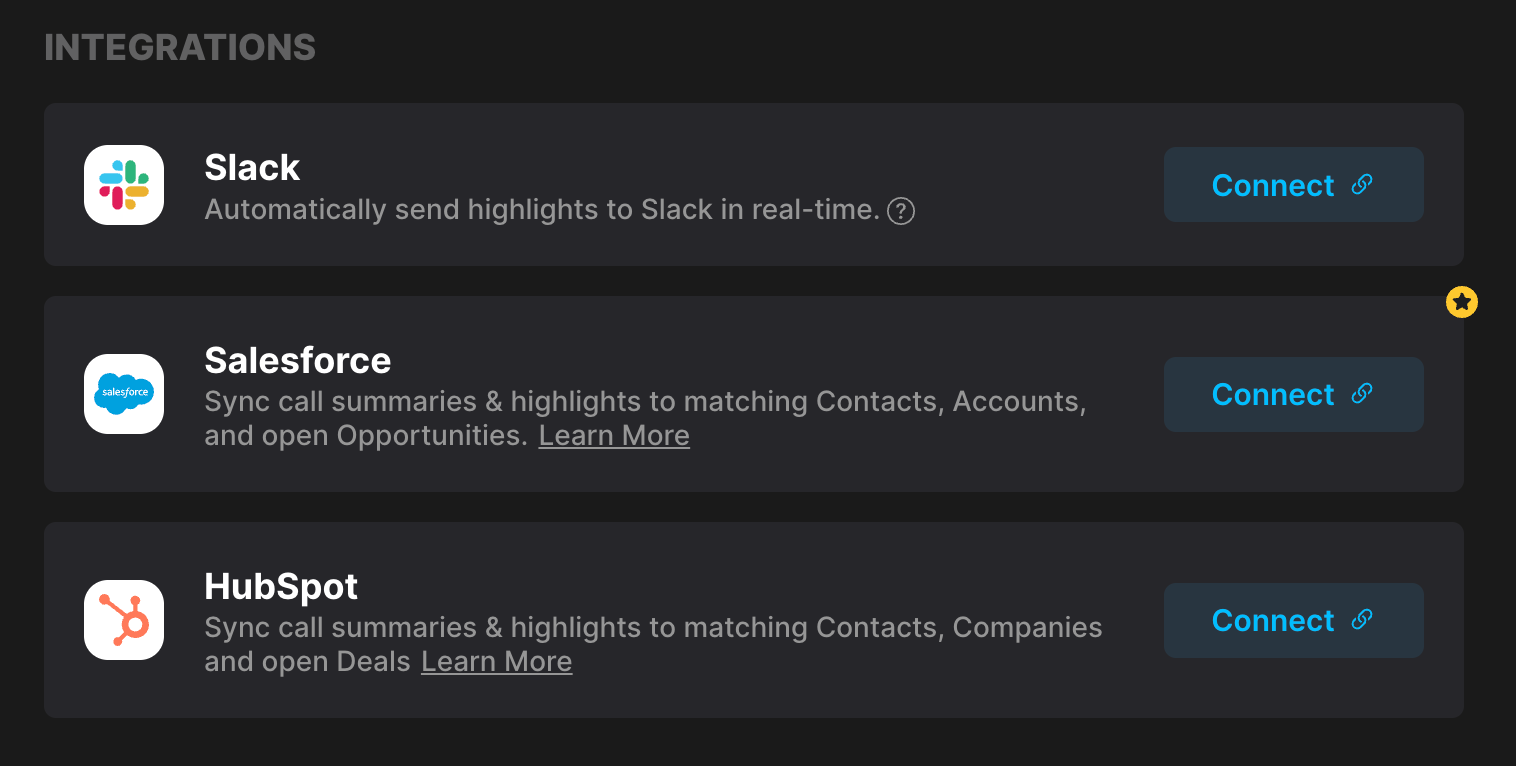
Under Integrations, click Connect next to HubSpot. If HubSpot isn't listed, contact Support.
Step 3
Click Connect to HubSpot.
💡You must be an Admin in HubSpot to configure the integration.

Step 4
You will be taken to your HubSpot account and asked to log in via OAuth if you're not already logged in to your HubSpot account on your browser. From here, click Connect App.

Note: If you have access to more than one HubSpot account, HubSpot asks you to choose one during this step. Your Fathom account can connect to one HubSpot account at a time. To switch accounts, disconnect the current one first (see the section below on "How do I disconnect HubSpot?")
How many people on my team can connect to a CRM?
It depends on your Fathom plan:
Free, Premium, and Team plans: Generally, up to three Fathom users per email domain can connect to a CRM (unless you're in an active trial).
Business and Enterprise plans: Unlimited HubSpot connections.
How do I install Fathom from the HubSpot App Marketplace?
Go to the Fathom AI Notetaker listing in the HubSpot App Marketplace and click Install. Fathom opens the Integrations section of your Fathom settings, where you finish connecting.
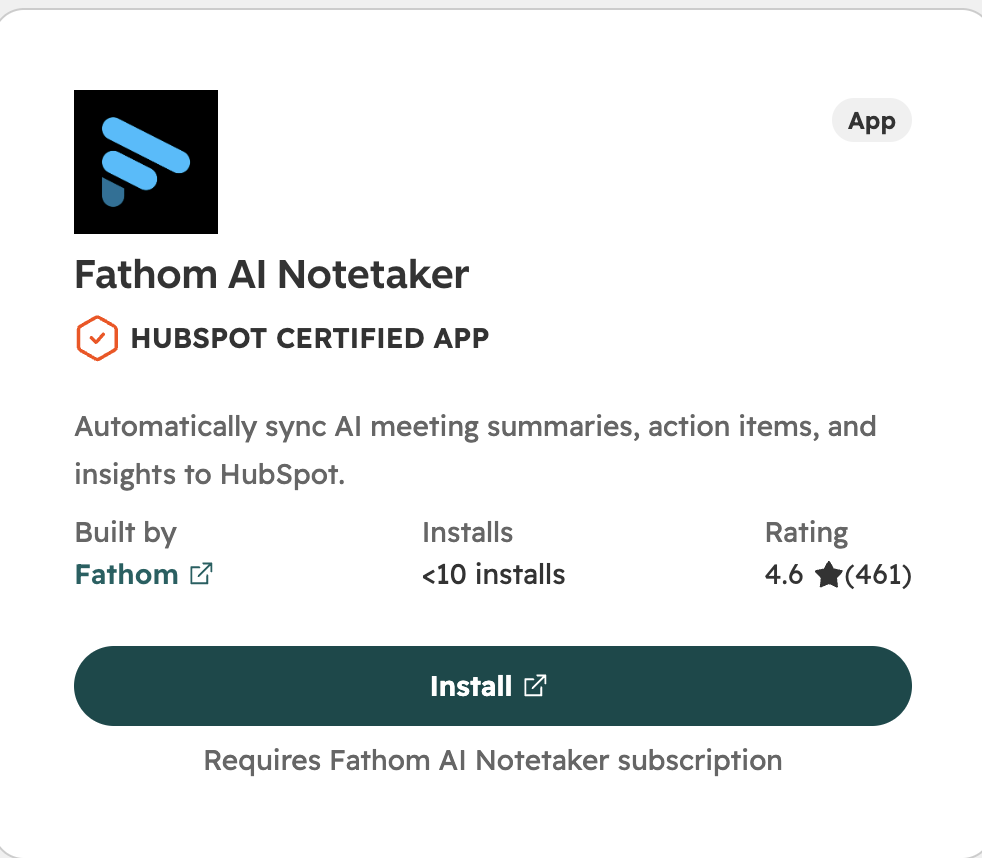
What you see after clicking Install depends on your account:
Signed in to Fathom and able to install: You land on the HubSpot section of your Settings. Click Connect next to HubSpot, then follow the prompts in HubSpot to approve the connection.
Not signed in: Fathom asks you to sign in or create an account first, then takes you to the HubSpot section of your settings.
Not able to install: Fathom shows a message explaining why and how to fix it.
How does it work?
Once you have connected Fathom to HubSpot, your calls will automatically sync to all deals in your account.
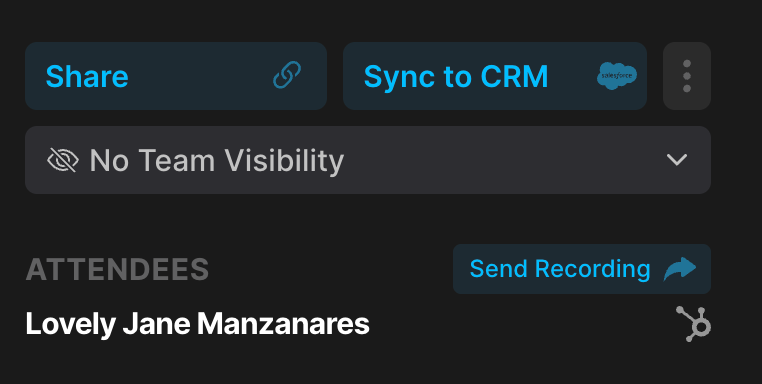
In Fathom, click on an individual call to view the call details page. On the right-hand side under Attendees, you will see a list of call attendees. Click on the HubSpot logo to see the Contact in HubSpot.
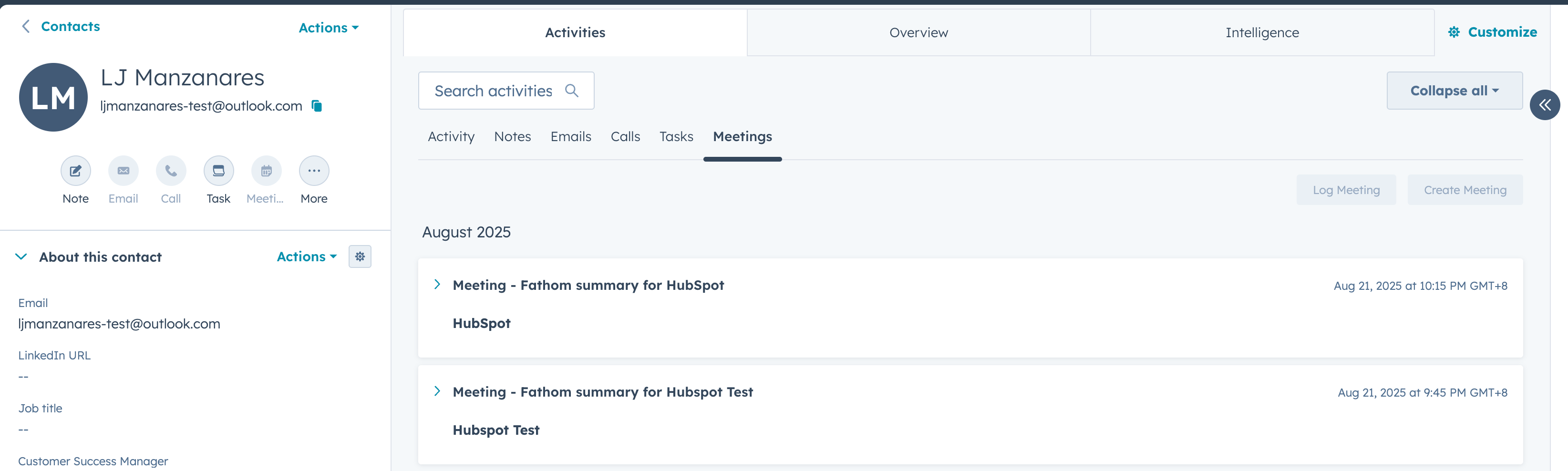
After a call syncs to HubSpot, you can view the Call Summary in the meeting activity on an associated contact, company, or deal record (Activities -> Meetings). You can also edit the notes in HubSpot, but a later Fathom sync may overwrite those edits.
The View Recording link (under the AI Meeting Summary) will take you to a shareable URL so your colleagues can also view the call recording, transcript, and notes.
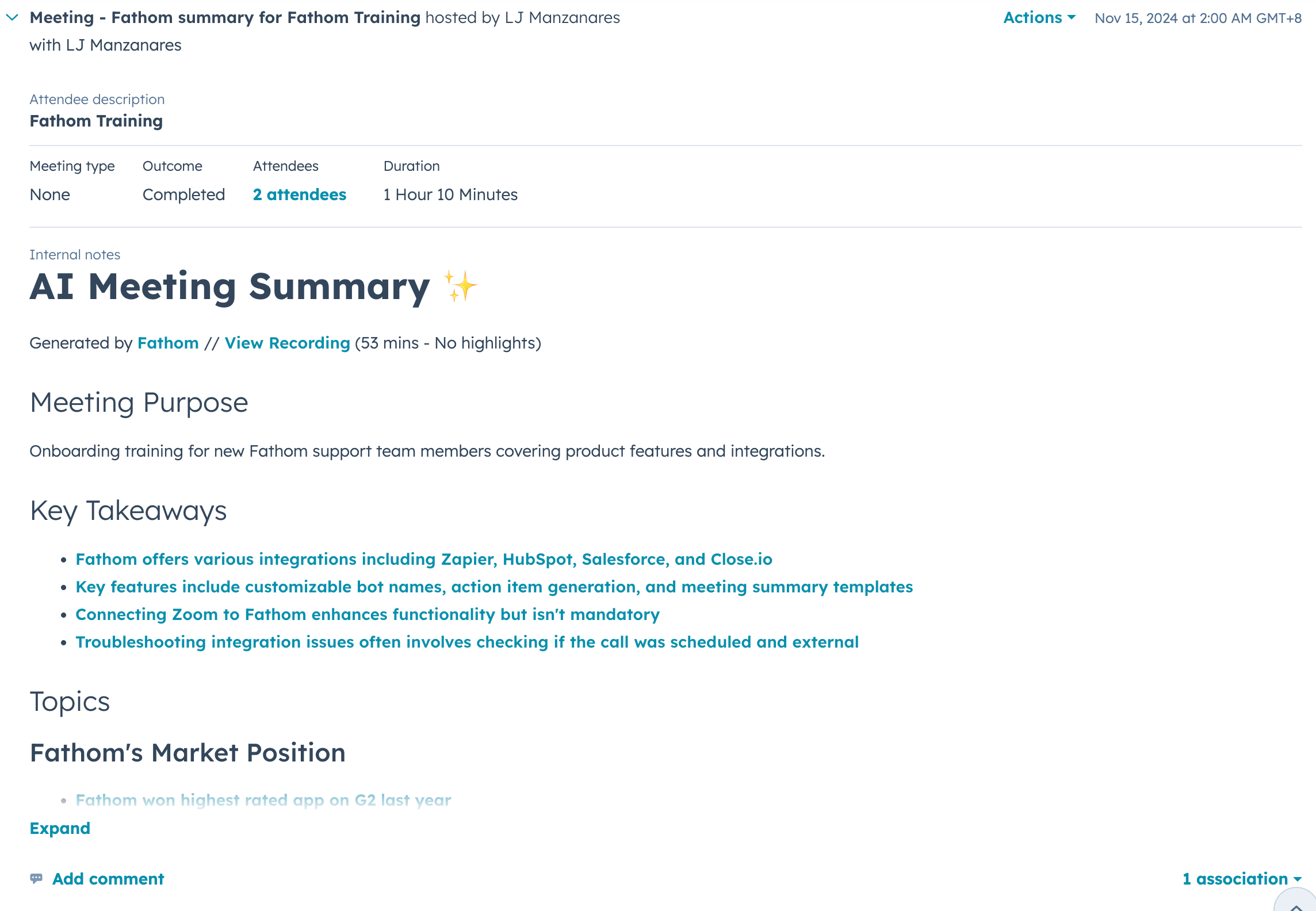
Note: Highlights don’t sync to HubSpot through Fathom’s native integration, but you can send them using Zapier or the Fathom API.
In Zapier, use the New Highlight trigger to send individual clips to your chosen destination in HubSpot. The Fathom–HubSpot Zapier integration page lists the available triggers and actions.
Tasks
You can also create tasks and send them to HubSpot after a call.
After a call, click on the plus icon (+) by hovering over any part of the call transcript, and select the Action Item option. This will create a task in Fathom and in HubSpot.
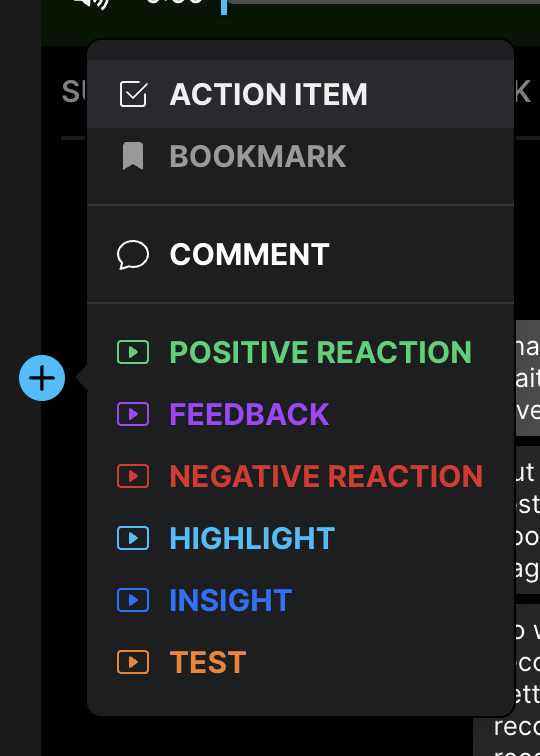
If you edit the call summary or add new action items, the call will re-sync with HubSpot instantly!
Configuring Summary Note Sync to Deal Fields (Business and Enterprise Plans Only)
Summary Note Sync to Deal Fields is only available on Business and Enterprise plans.
Before setting up field mapping: HubSpot must first be connected for your organization in Fathom’s Organization Settings. Field mapping must be configured by someone who is both a Fathom Account Admin and HubSpot Super Admin. Field mapping currently supports HubSpot text properties.
To sync deal information directly into HubSpot fields:
Navigate to a Deal in Fathom — it doesn't matter which one for setup purposes.
Hover over the heading you'd like to map.
Click Map to HubSpot.
Check the field you'd like the heading to map to.
If the desired field doesn't exist in HubSpot yet, you'll need to create it in HubSpot first.

Configuring HubSpot Cards
Our HubSpot Cards integration allows you to see the last five meetings related to a Company, Contact, or Deal right inside HubSpot, each with a recording link and a quick summary.
Things to Note
Once the integration is connected, we'll sync calls moving forward.
The intended contact in HubSpot must be added to the scheduled meeting for it to sync. External contacts are identified by their primary email address. We cannot match with secondary/additional addresses on their profile.
HubSpot sync works for external contacts, not calls with internal contacts.
HubSpot sync will work on scheduled calls on your main calendar - it won't pick up calls from sub-calendars or secondary calendars.
How to Disconnect HubSpot
You can disconnect HubSpot from Fathom or from Hubspot. Note that who can disconnect depends on how HubSpot was connected.
From Fathom:
Go to Settings for a personal connection, or Organization Settings for a team connection.
Find HubSpot under Integrations
Click Disconnect. If the Disconnect button is greyed out, a teammate manages your HubSpot connection, and only they can disconnect it. Fathom shows a tooltip saying who manages it.
From HubSpot:
Go to HubSpot → Settings
Under Account Setup → Integrations → Connected Apps
Find “Fathom”
Click Actions → Uninstall
Expected Behavior
After disconnecting from HubSpot, the data already synced will remain in the system — nothing will be deleted. All of your calls in Fathom will also remain as-is.
Future calls recorded with Fathom, or edited in Fathom, will not sync to HubSpot after disconnecting. There will be no sync between Fathom and HubSpot if the integration has been disconnected.
Re-Syncing after Reconnecting
If you decide to reconnect to HubSpot after disconnecting from HubSpot, you can sync calls retroactively. Locate the call in Fathom, then click the Sync button.
You will need to press the Sync button for each call that occurred while you were disconnected from HubSpot.