
Slack Huddles
Overview
Fathom now supports Slack Huddles as a capture source in the new bot-free experience! When your team syncs over a Huddle — even for quick, unscheduled conversations — Fathom can capture the audio and generate your usual post-call artifacts.
How it works
Slack Huddles are treated as impromptu meetings. Because they typically aren't on your calendar, Fathom won't detect them automatically — you'll need to start capture manually from the desktop app.
To capture a Slack Huddle:
Start or join the Huddle in Slack.
Open the Fathom desktop app.
Start capture from the tray icon or in-meeting panel.
Once the Huddle ends, Fathom will process the audio and generate:
Summary
Action items
Transcript
Auto-capture for Slack Huddles
By default, Slack Huddles require manual capture. If you'd like Fathom to auto-capture unscheduled Huddles instead, you can now set this preference directly — head to the Settings page, under Video Conferencing, and turn on auto-capture for Slack Huddles. This is a dedicated setting, separate from the "Auto-capture unscheduled Zoom meetings" toggle.
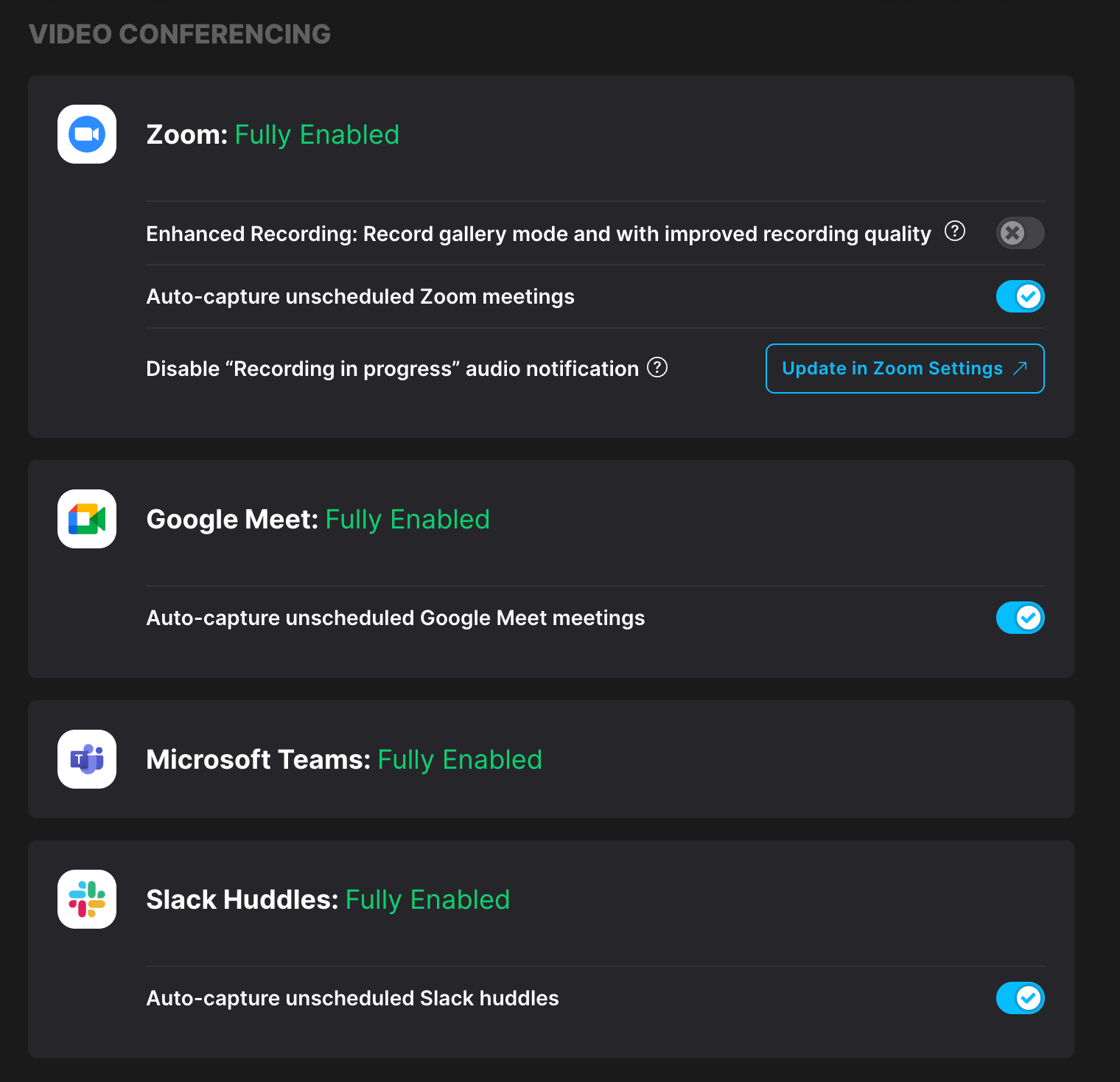
Note: If you previously had "Auto-capture unscheduled Zoom meetings" enabled, your Slack Huddle auto-capture setting has been automatically turned on too, so your existing behavior is preserved. You can adjust it independently going forward.
Capture modes
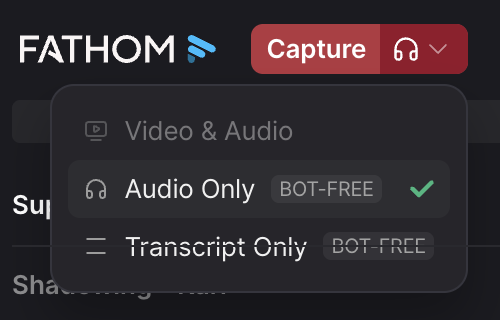
Slack Huddles use the same capture modes available in the desktop app (Transcript Only, Audio Only, Audio + Video). Note that video capture depends on what Slack surfaces — if you need reliable video, consider using a bot-supported platform like Zoom or Google Meet instead.
FAQ
Does Fathom join the Huddle as a bot? No. Capture happens locally via the Fathom desktop app — no bot joins the call.
Do I need the Huddle to be on my calendar? No. Slack Huddles are supported as impromptu meetings regardless of whether they're scheduled.
Does this work for private Slack Huddles? Yes. Because capture is done locally, privacy of the Huddle itself doesn't affect Fathom's ability to record. Your usual Fathom sharing settings still apply to any notes or recordings produced.
Can I capture video in a Slack Huddle? Possibly, depending on what Slack makes available. If video capture is important, a bot-supported platform (Zoom, Google Meet) gives more reliable results.
Troubleshooting
I don't see Slack Huddle capture options
Make sure you're on the latest version of the Fathom desktop app.
Restart the app if you've recently updated.
Slack Huddle support is part of the bot-free version rollout. If you haven't been upgraded yet, these options may not be available to you yet — check this article for upgrade eligibility details.
I had auto-record enabled, but my Huddle wasn't captured
Expected behavior. Auto-record doesn't apply to Slack Huddles. Start capture manually next time.