
How to Upgrade to Fathom 3.0+
Ready to try the new Fathom? Here's everything you need to know to get started!
Before You Start
Right now, Fathom 3.0+ is only available for Mac users. As of October 1, 2026, Fathom 3.0 supports English and 38 additional languages for native-language summaries and translated action items. Multilingual support is rolling out in phases, so availability may vary by account.
You won't receive any emails or notifications prompting you to upgrade; it'll happen directly in the Desktop App.
How to Check if You're Part of the Rollout:
As of April 15, 2026, you're good to go if:
You're on Mac (Windows is coming soon!), AND
You're running the latest version of the Fathom desktop app, AND
Your meetings are recorded in one of our 39 supported languages
How to Upgrade
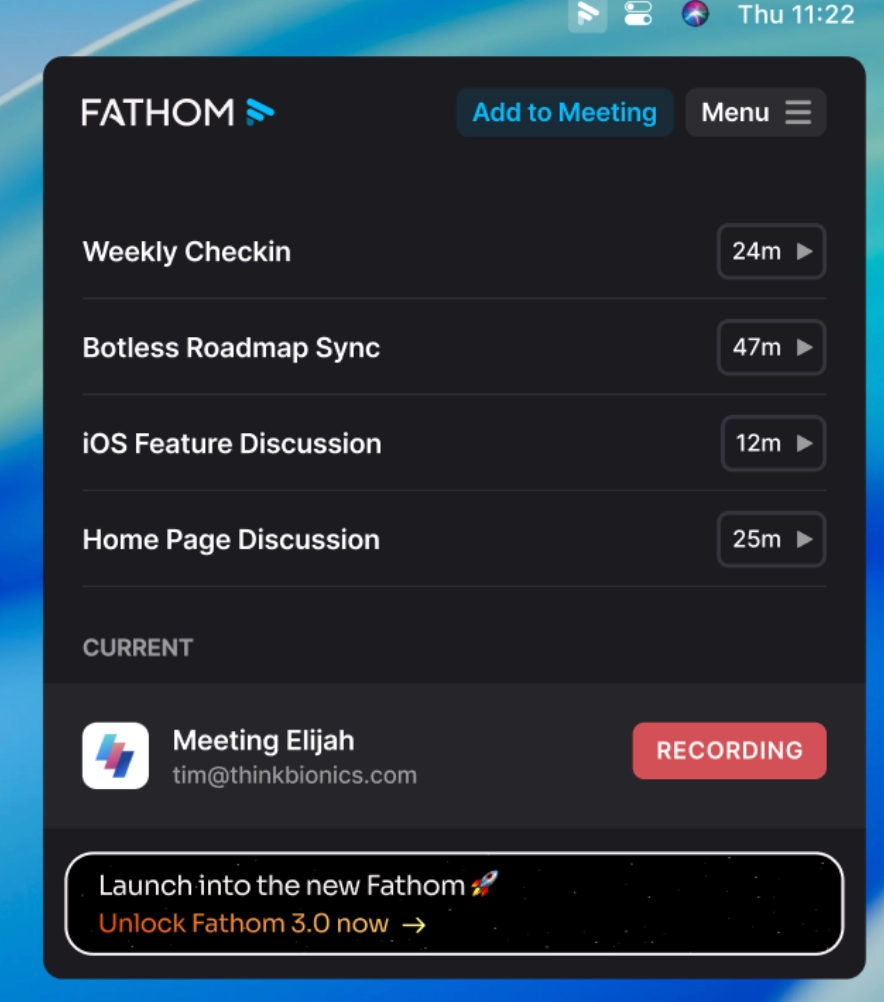
Find the Fathom icon in your Mac toolbar/menu bar
Click it to open the Fathom tray
Click the upgrade banner inside the tray
What happens next
Step 1 — Upgrade video
Clicking the banner kicks off an upgrade video right away.
Step 2 — Desktop onboarding
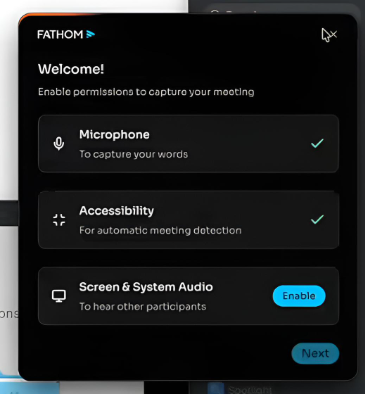
You'll be guided through a quick setup, which includes:
Setting up your microphone and any required permissions (like accessibility access)
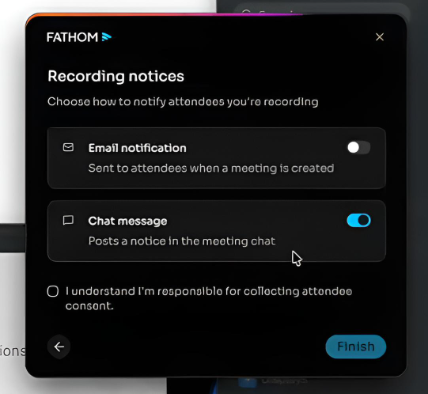
Confirming your recording consent responsibilities
Capture Modes
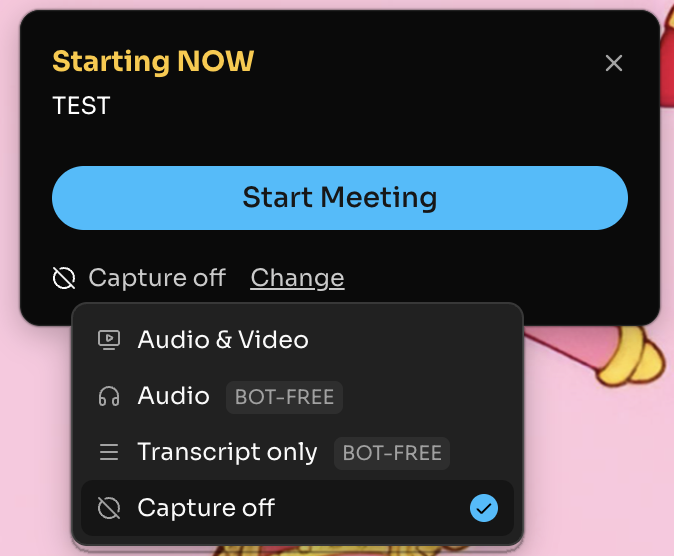
Once you're upgraded, you'll see a Capture Mode option before each meeting. Here's what each one does:
Capture Off — Fathom sits out entirely
Transcript Only (bot-free) — No recording is saved; you get transcript and a summary only
Audio Only (bot-free) — Audio is captured locally on your device, no video
Audio & Video (Bot) — A bot joins the meeting to record full audio and video
Recording Notice and Consent
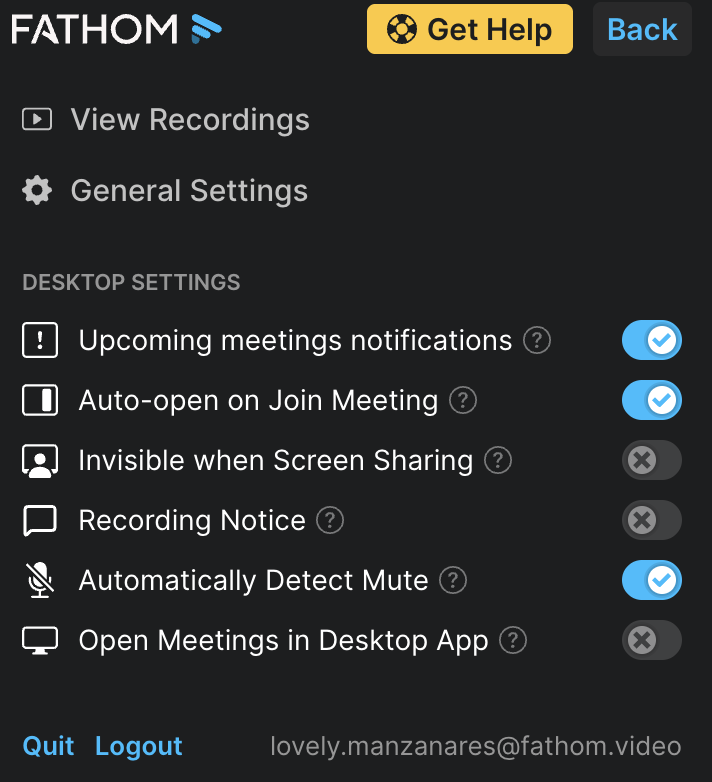
Turning on Recording Notice
In the tray, you can enable Recording Notice. When this is on, Fathom automatically posts a message in your meeting chat when recording starts:
"Fathom is recording and taking notes, and you consent by continuing."
If Recording Notice is off
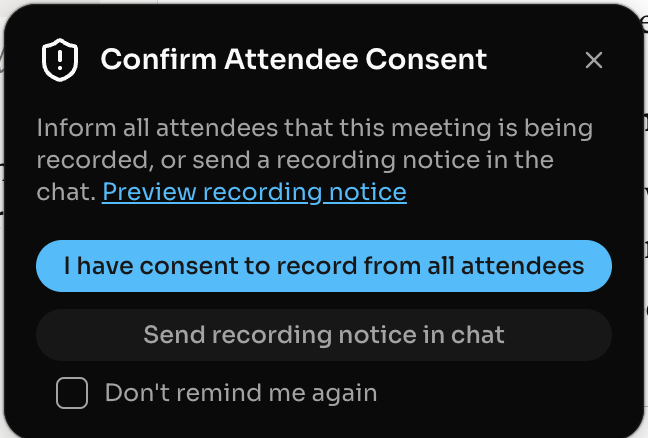
You'll see consent prompts directly in the app instead:
When capture starts, Fathom may ask you to confirm consent before the live panel appears
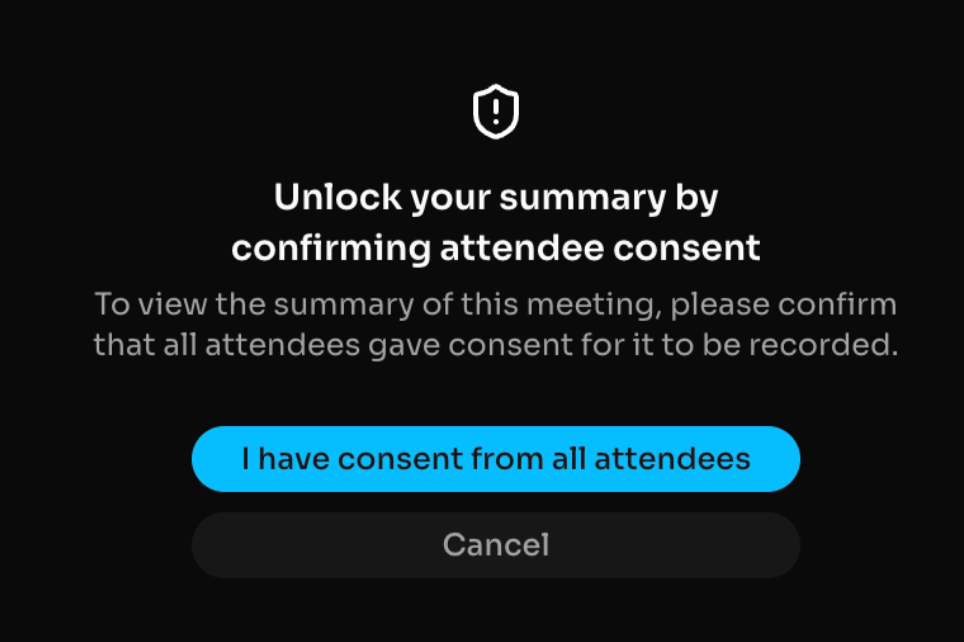
If the meeting ends without consent being confirmed, Fathom may ask you to confirm it before you can view your summary
What You'll See During & After the Meeting
After upgrading, you'll have access to:
Live summary — Updates in real time as the meeting goes on
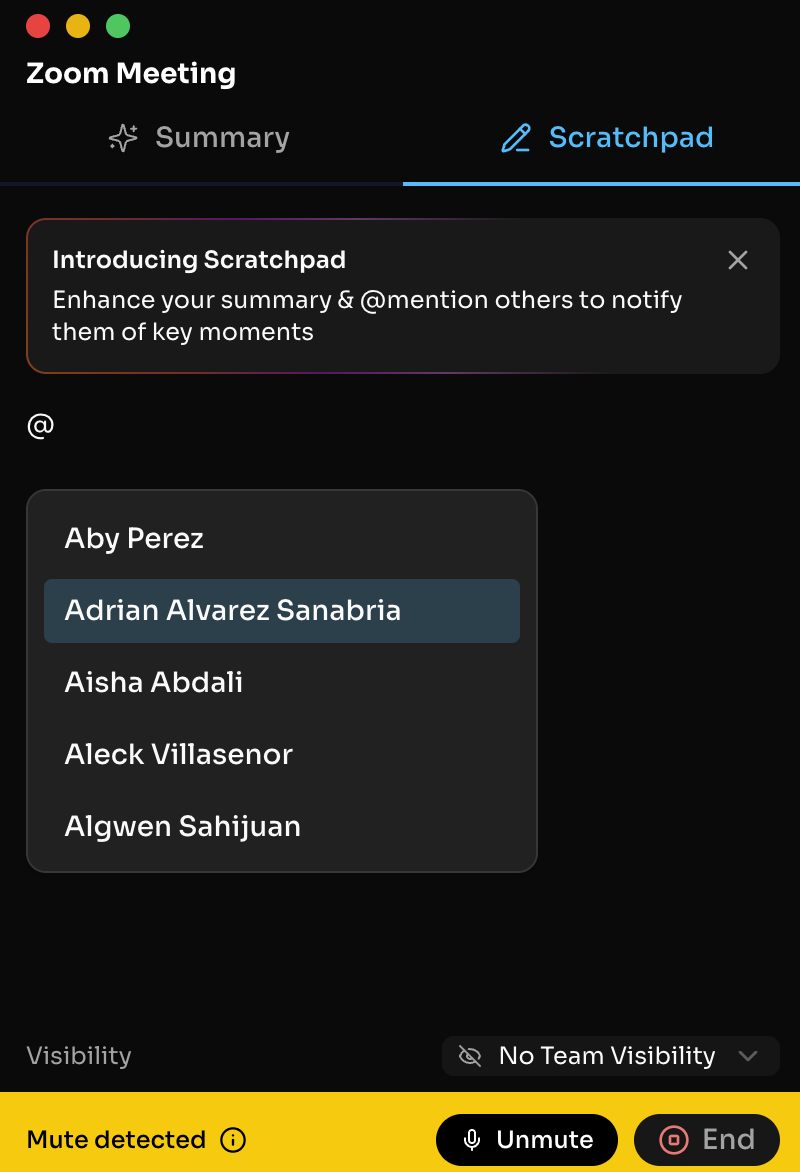
Scratch pad — A private space to jot notes during the call
@mentions — Tag teammates directly in your Scratch pad notes. When tagging someone in your Scratch pad who isn’t on the call, they'll receive an email with your comment and be given access to the call. If the person is internal—same company email domain—simply choose their name from a drop-down list. If the person is external, you can tag them using their email address (e.g., @lisa@acme.com).
An AI-generated summary appears right after the call ends. You can change the summary template to fit your specific needs and workflow.
Highlighted text indicate where your scratch pad notes were incorporated
Access Account-Wide Ask Fathom from within any call interface to ask questions across your meeting history to get one synthesized answer.
Watch the video demo below to see these features in action!
Not Eligible Yet?
No worries! If you're on Windows or your meetings aren't in one of our supported languages (38 non-English languages plus English), you won't see the upgrade banner just yet. A status message in the tray with an estimated timeline is coming soon.
In the meantime, your current version of Fathom keeps working exactly as it always has.
Troubleshooting
I don't see the upgrade banner
Make sure you're clicking the Fathom icon and looking inside the desktop app drawer
Try quitting and reopening the desktop app, then check again
If it's still not there, you may not be eligible yet based on the current rollout phase
I clicked the banner but nothing opened
Check if a new window was blocked by your browser or system
Try again and allow pop-ups if prompted
Reverting to the previous experience
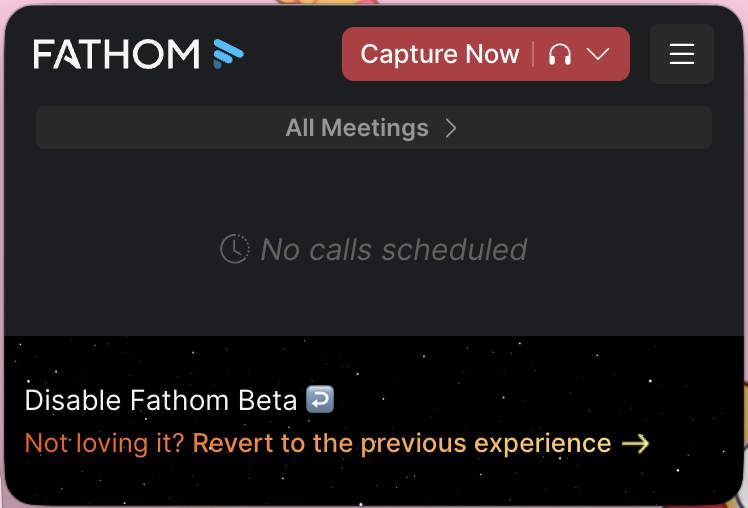
If you’ve already upgraded and want to switch back, you can revert to the previous experience directly from the same Fathom desktop app tray where the upgrade banner appears. Open the Fathom icon in your Mac menu bar, then look near the bottom of the tray for the option to disable the beta / return to the previous experience.
If you don’t see the option, make sure you’re opening the Fathom tray from the menu bar and that you’re on the latest version of the desktop app.
Need Help?
If something isn't working as expected, please send an email to help@fathom.video, and we'll get you sorted!