
Creating and Sharing Playlists
What is a playlist?
A playlist is a group of highlighted clips that can be shared among your Team. You can add highlighted clips of calls to a Playlist.
💡 You can create a playlist of positive testimonials, important training moments, user feedback, feature requests, and so much more!
How to add a highlighted clip to a playlist
On the call recording page, go to the highlighted clip that you wish to add to the playlist
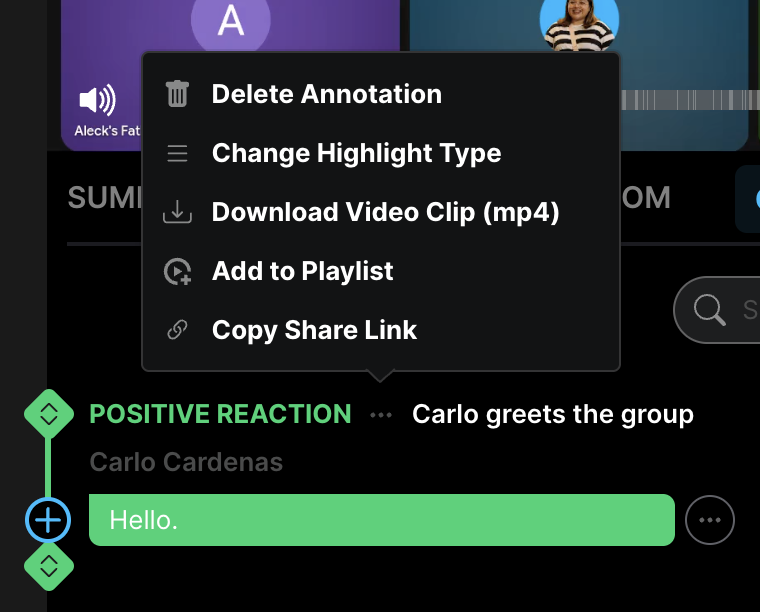
Click on the “…” next to the Highlight title
Select "Add to Playlist" and select an existing Playlist or create a new one
Reviewing your playlists
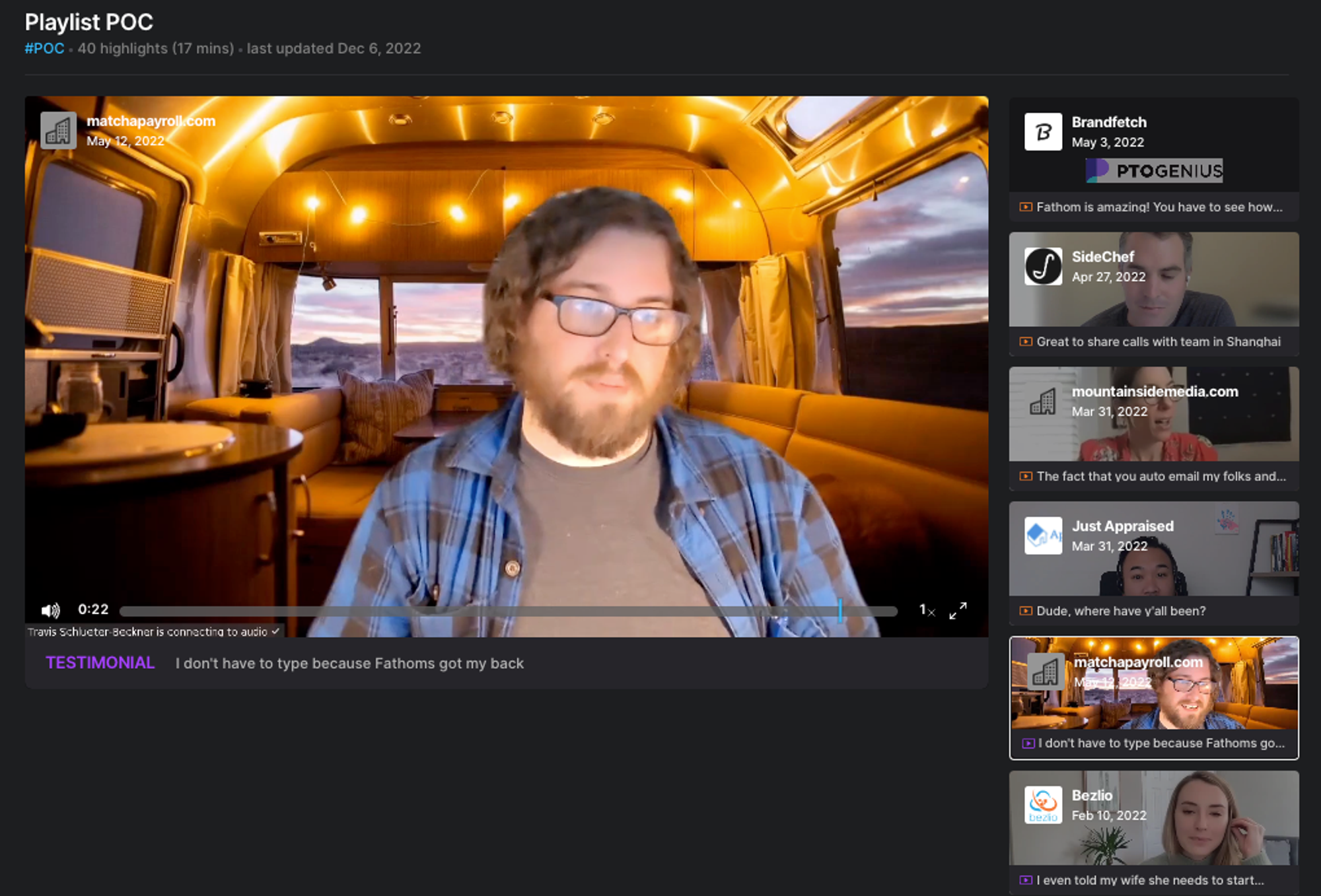
To access your playlists, you can click on the Playlists tab.
Click "Play All" to watch the video portion of the highlights or calls play one after the other.
Click "Share" to copy a share link to your clipboard.
Deleting Playlists
Playlist owners and Team Admins (if you're on Team Edition) can delete Playlists in Fathom.
Navigate to the Playlists tab
Hover over the Playlist you'd like to delete
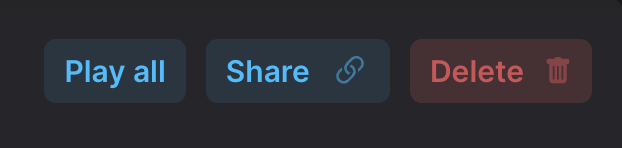
Click the red delete button:
🗒️ Once deleted, Playlists cannot be recovered.
Playlists vs. Folders: what’s the difference?
Playlists and folders both help you organize content in Fathom, but they’re meant for different things:
Playlists are for sharing a curated set of Highlights (clips) from one or more calls. Think of these as a “best-of” reel you can share with your team for training, testimonials, feedback, etc.
Folders are for organizing and sharing full calls (recordings, transcripts, and summaries) together. Calls added to a folder inherit the folder’s sharing permissions, which makes folders ideal for organizing calls by customer, project, pipeline segment, or team workflows.
Quick rule of thumb:
Use a playlist when you want to share specific moments (Highlights).
Use a folder when you want to organize/share complete calls.
How to get Folders on your account
Folders are a Team Plan feature and aren’t available on individual Free or Premium licenses.
To use folders:
You’ll need to be on a Team Plan or be added to an existing Team Plan workspace/account.
Once your account has access, you can find folders from the Folders tab (or by visiting
https://fathom.video/folders). Read more here to know more about Folders!