
What to do if your transcript is empty
If you expected a transcript but don’t see one, check your capture mode and audio settings. These checks may help identify a setup issue.
Check your Capture mode
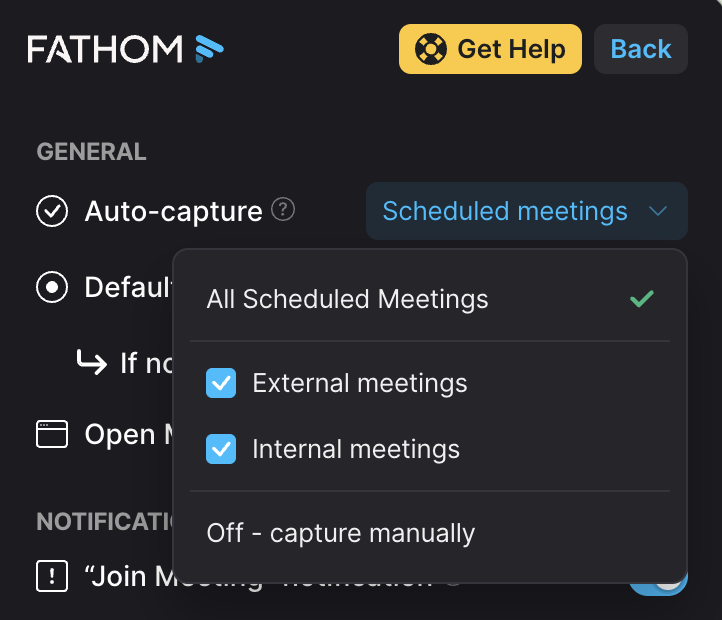
In the Fathom desktop app, make sure you have Auto-capture enabled under Settings. If Auto-capture is turned off and you didn't capture the call manually, Fathom cannot create a transcript of the call.
Check Fathom’s permissions on your Mac
Open System Settings → Privacy & Security → Screen & System Audio Recording.
Make sure Fathom is enabled.
Also check the separate System Audio Recording Only permission and make sure Fathom is enabled there too.
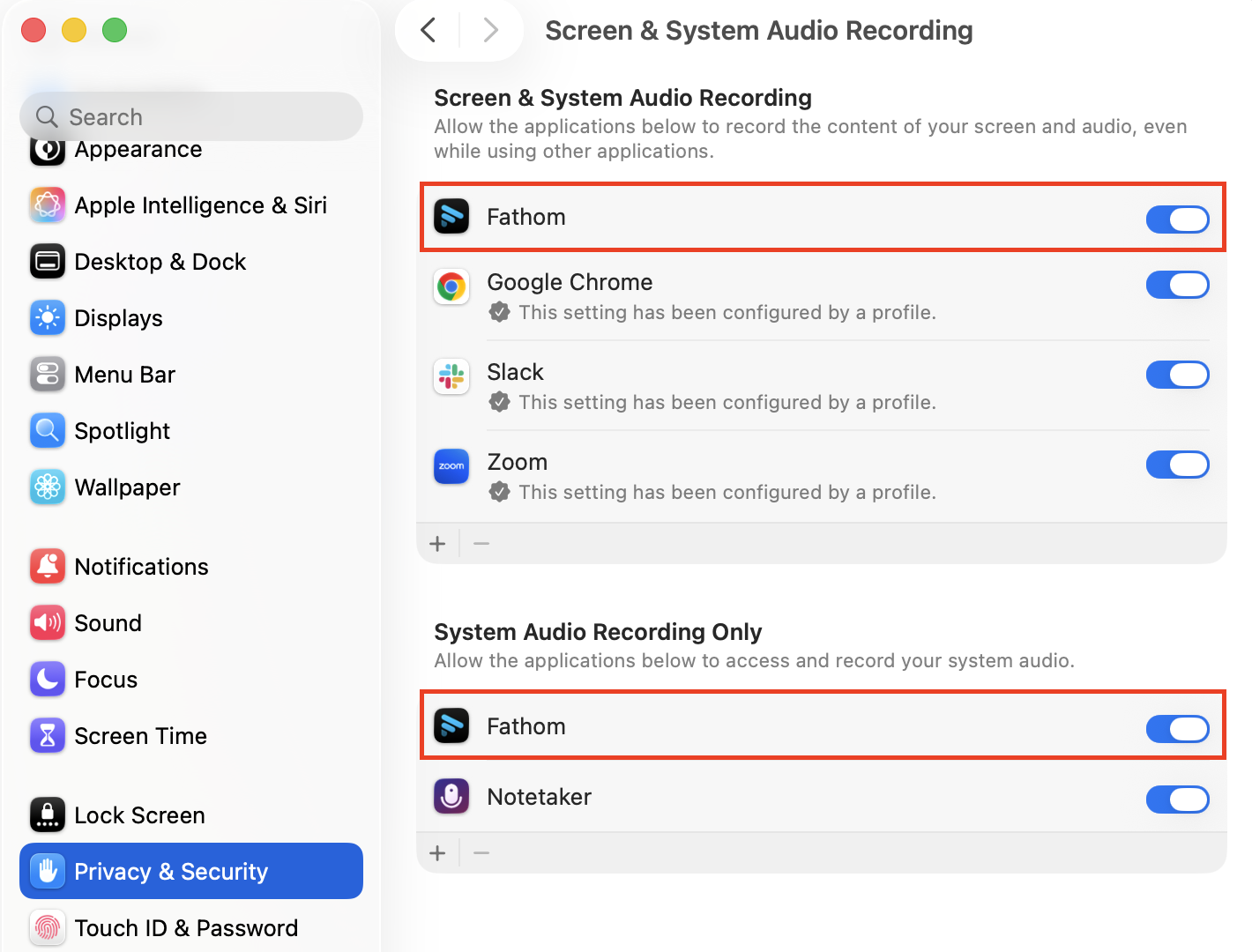
If the Screen & System Audio Recording permission seems stuck, remove Fathom from that list using the minus (−) button, then fully quit and reopen Fathom. Simply turning the permission off and on may not reset it.
Check your meeting audio settings
Make sure your meeting app is using the microphone and speaker you expect. If you use Zoom on a Mac, check the selected microphone in Zoom’s audio settings. If it’s set to ZoomAudioDevice (Virtual), choose a real microphone instead, such as your Mac’s built-in microphone or a physical external microphone. Also make sure Zoom audio is connected before recording starts. This check is specific to Zoom on Mac.
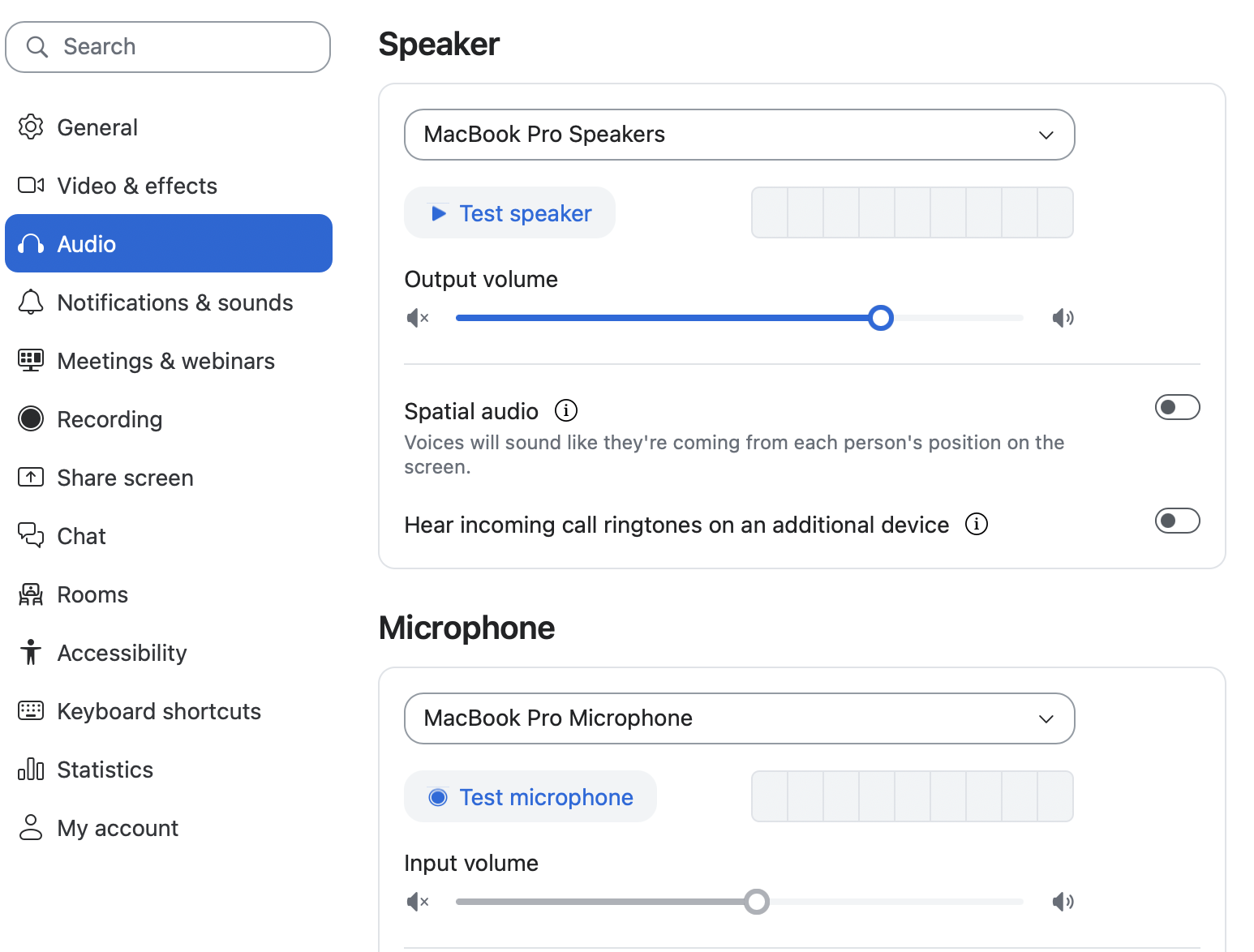
If only your own voice is missing, check that Fathom has microphone access in your computer’s privacy settings. You can also choose a microphone from the dropdown beside the mic icon in Fathom during a call.
If you’re using Windows
The Mac permission steps above don’t apply. The Windows audio-device checks below are specifically for Microsoft Teams calls:
If other participants’ voices are missing, check that your Windows default audio output matches the device selected in Teams.
If only your own voice is missing, check that the microphone selected in Fathom matches the one selected in Teams.
These are checks for future calls; they won’t restore audio to an existing recording.
Test your setup
After checking your settings, try a short test call. These steps can help with future calls, but they can’t restore audio that wasn’t captured in an earlier recording. If a recording has no audio, Fathom can’t create a transcript from it.
If you still don’t see a transcript—or if the recording has audio but no transcript—contact Support. Include the call link, your operating system and Fathom app version, the meeting app and capture mode, whether any audio plays, and which settings you checked.