
How Does Fathom Auto-Share Recordings and Summaries with Attendees?
Fathom can automatically share your meeting recordings and/or AI-generated summaries with attendees—but only if auto-share is turned on in your Fathom settings.
Here’s how it works:
Auto-Share Options
When you enable auto-share, you can choose what attendees receive:
Summary & Recording: Both your AI-generated meeting summary and a link to the recording are sent automatically. See the "Important" note below on share link behavior.
Summary Only: Only the summary is sent; attendees won’t get the recording automatically. They can still request the recording, but the call owner must approve it.
Nothing: No summary or recording is shared.
Who Gets It?
All attendees listed on the Google Calendar or Microsoft Outlook calendar invite that Fathom syncs with will receive the auto-share, even if they didn't attend the meeting.
Auto-share happens right after your meeting ends, so everyone gets access quickly.
Tip: If someone wasn’t on the invite but needs access, you can still manually share the recording or summary with them.
Can I unsend a recording I’ve already shared?
Currently, Fathom doesn’t have a feature to “unsend” a recording once it’s been shared. This is a limitation of email systems and servers.
However, you can revoke someone’s access to the recording at any time:
Open the recording you’ve shared.
Find the person’s email under the sharing settings.
Click Remove
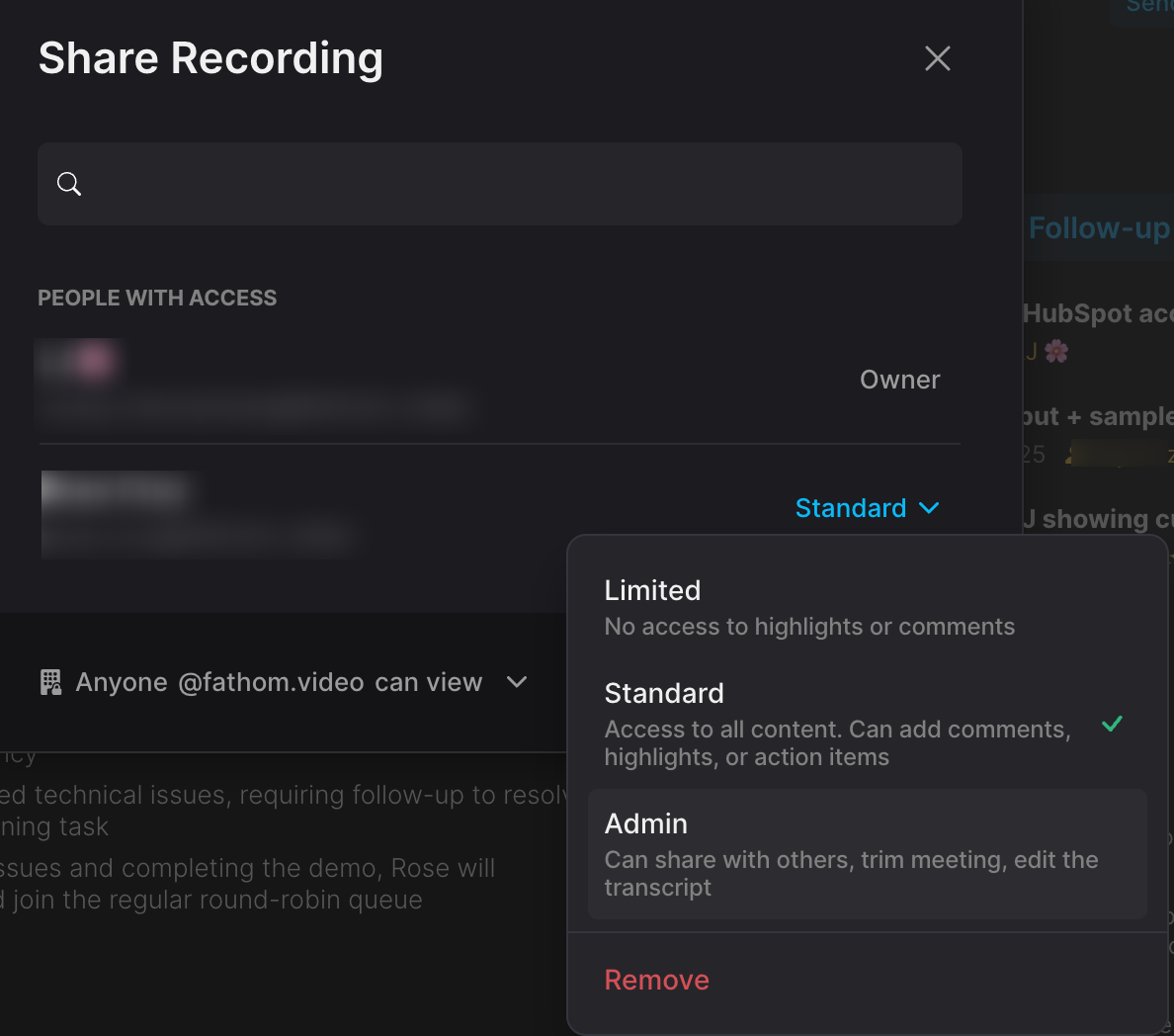
Once removed, they will no longer be able to access the recording.
⚠️ Important:
If you're on a Teams pricing plan and your Default Share Link Access is set to “Anyone with the link can view,” the recording will remain accessible to anyone who has the link. This means attendees who receive the recording link can forward or share it with others, and anyone with the link can access the recording. NOTE: If you're on an Individual or Free plan, the recording link sent to attendees has “Anyone with the link can view” selected by default.
For added security, change your sharing settings to “Only people added can view.” If you're on an Individual or Free plan, you’ll need to update this setting for each recording you want to restrict.