
Manage Auto-capture and Team Visibility Settings
Fathom admins can control which meetings should be captured by default and who those meetings should be visible to, both at an organization level and team level. Auto-capture and Team Visibility settings are available under Organization Settings and Team Settings, and can be configured separately for External, Internal, and Unscheduled meetings.
Account Admins can access both Organization Settings (which control organization-wide defaults) and Team Settings.
Team Admins can access Team Settings to manage settings for the team(s) assigned to them, but they can’t access Organization Settings unless they’re also an account admin.
Use these settings to set defaults for your organization or team, while still giving users flexibility where appropriate.
What do Auto-capture and Team Visibility settings control?
Auto-capture: Determines if Fathom automatically captures meetings of a specific type (External, Internal, Unscheduled), or lets users choose for themselves. Note: Even with Auto-Capture set to “off” users can still capture meetings manually. This setting only prevents Fathom from capturing automatically on join.
Visibility: Determines which internal users can see captured meetings by default. Admins can configure visibility separately for External, Internal, and Unscheduled meetings. They can also control whether users can change a meeting’s visibility after the default setting is applied (on a per meeting basis).
Auto-capture and Visibility settings can be managed separately for:
External meetings: These are meetings with at least one participant from outside your organization. Fathom uses your email domain to determine your organization. For example, if someone from your company meets with a customer, prospect, vendor, or other outside participant, Fathom treats that as an external meeting.
Internal meetings: These are meetings where all participants use your organization’s email domain. For example, if everyone in the meeting has a @yourcompany.com email address, Fathom treats that as an internal meeting. Note: If a participant has a different email domain but is a member of your team, they will still be treated as an internal participant.
Unscheduled meetings: These are meetings that are not matched to a scheduled calendar event.
Where do I manage these settings?
Admins can manage these controls in two places:
1. Under Organization Settings (Only available to Account Admins)
Navigate to Settings > Organization Settings. The Auto-Capture settings appear under the “Recording” section.
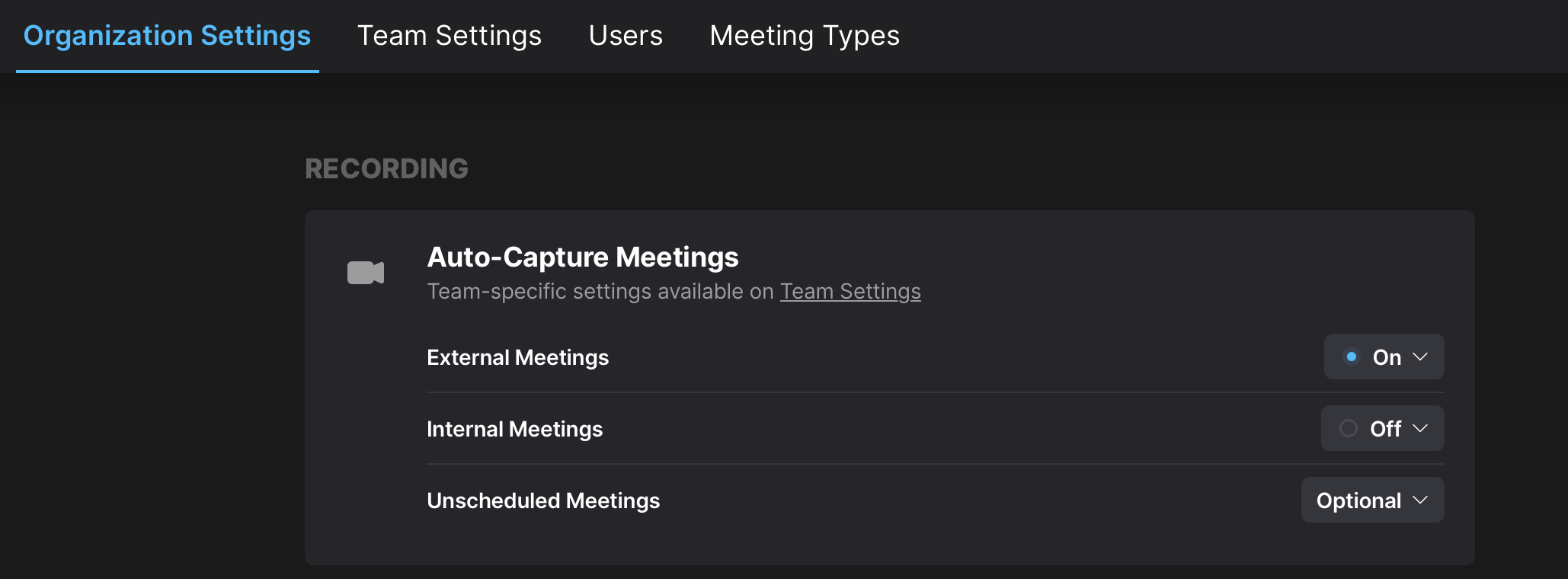
Here, you have the option to set the organization’s Auto-capture default to On, Off, or Optional, so Fathom knows whether to start capturing automatically when joining External, Internal and Unscheduled meetings.
Further down the page, you’ll see the Team Visibility settings under the “Access Controls” section.
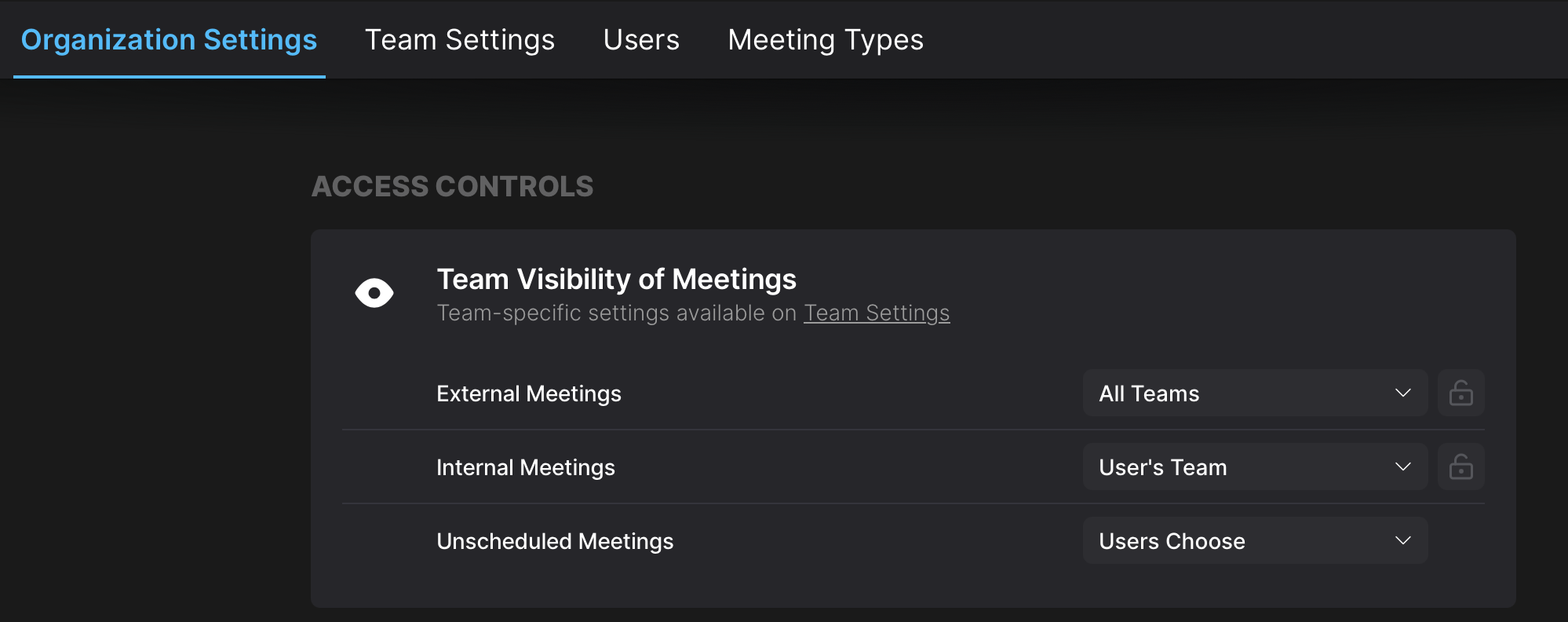
Here, you can choose the following organization defaults for External, Internal, and Unscheduled Meetings:
All Teams: Visible to members of any team
User’s Team: Visible to owner’s teammates (and anyone else who has been granted visibility into that team's meetings)
Private (No teams): Only the owner can view
User Choose: Members set their default visibility
2. Under Team Settings (Available to Account and Team Admins)
Navigate to Settings > Team Settings. Team Admins can override the organization-level defaults for Auto-capture and Visibility, and configure them individually for each team and for each type of meeting (External, Internal, Unscheduled).
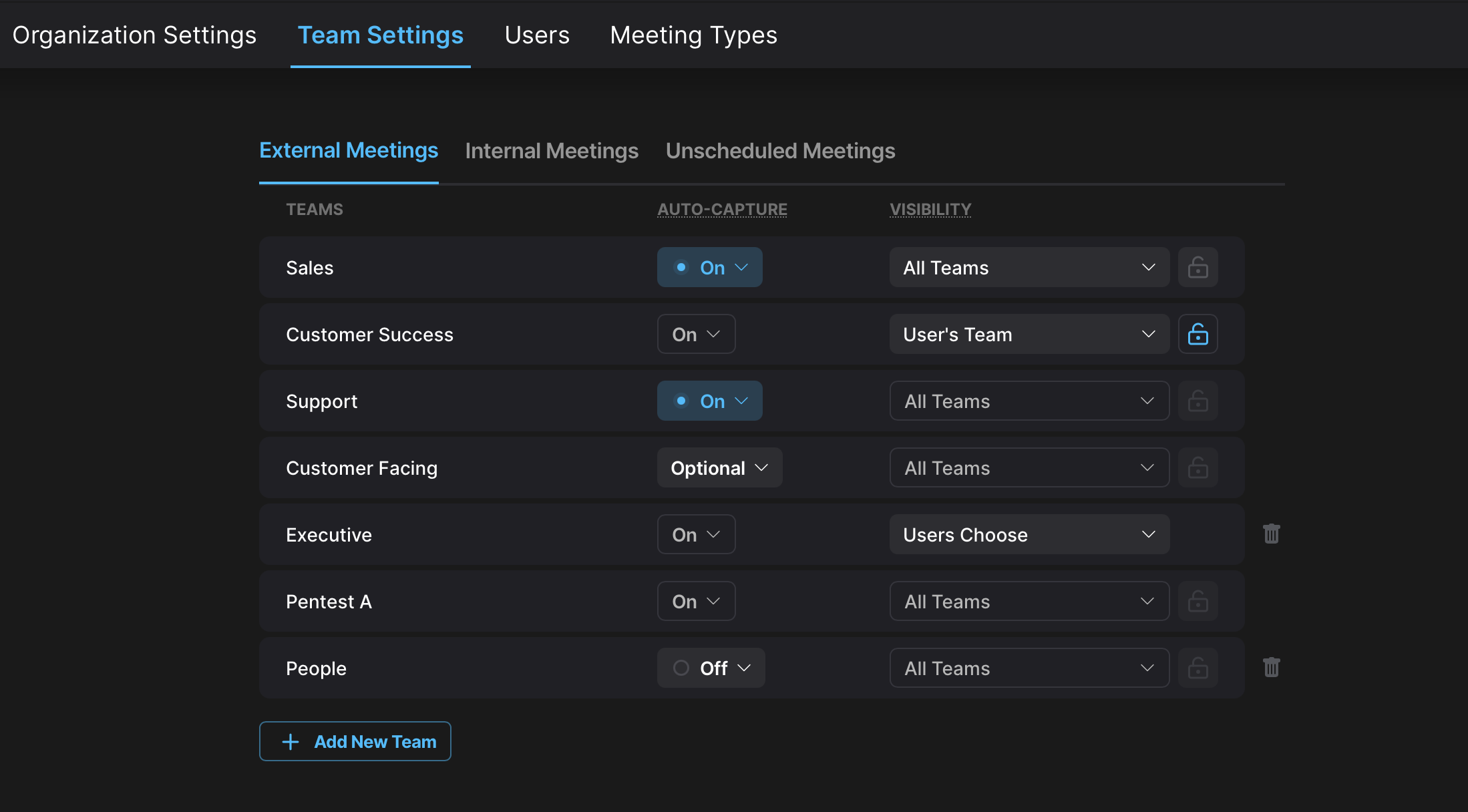
Team Admins have the same Auto-Capture and Visibility drop-down options as Account Admins under the Organization Settings — Auto-Capture (On, Off, Optional) and Visibility (All Teams, User's Teams, Private, User Choose) — plus an "Org default" option that mirrors the organization's current setting.
Watch the video demo below to see how to configure the Auto-capture and Visibility settings under the Organization Settings and Team Settings tabs.
How do Organization Settings and Team Settings work together?
Organization Settings establish the default behavior for your entire organization. Once an Account Admin configures the Auto-Capture and Team Visibility settings on the Organization Settings tab, those choices carry over to the Team Settings tab as the company-wide defaults.
Team-level settings can override the organization defaults to enforce behavior for a specific team. This is useful when different teams need different capture or visibility behavior.
For example:
A Sales team may want external customer meetings captured and visible to the team.
A Leadership team may want internal meetings to remain private by default.
A Support team may want unscheduled customer escalation calls captured automatically.
Team-level settings can also help ensure meetings are shared with the right internal audience without making every meeting visible to the whole organization.
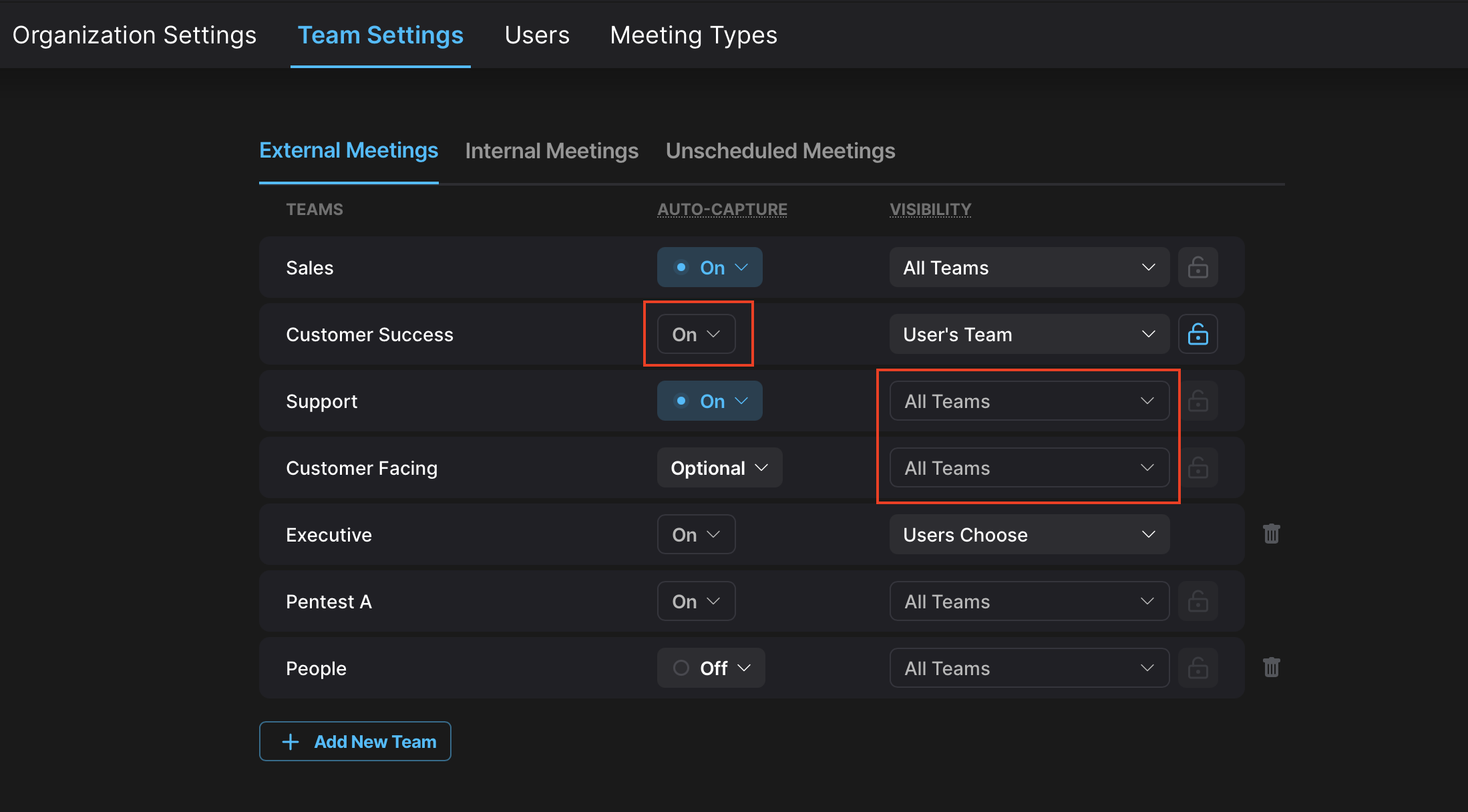
If a team setting is configured to use the organization default, that setting will display as inset on the page, making exceptions easy to spot.
Can users override Organization and Team settings?
An Admin’s Auto-capture setting determines which Scheduled meetings (External or Internal) Fathom captures automatically by default for individual users. Each user's Auto-capture behavior follows the default set for their specific team, unless the admin selects "Optional" which lets users select their own defaults.
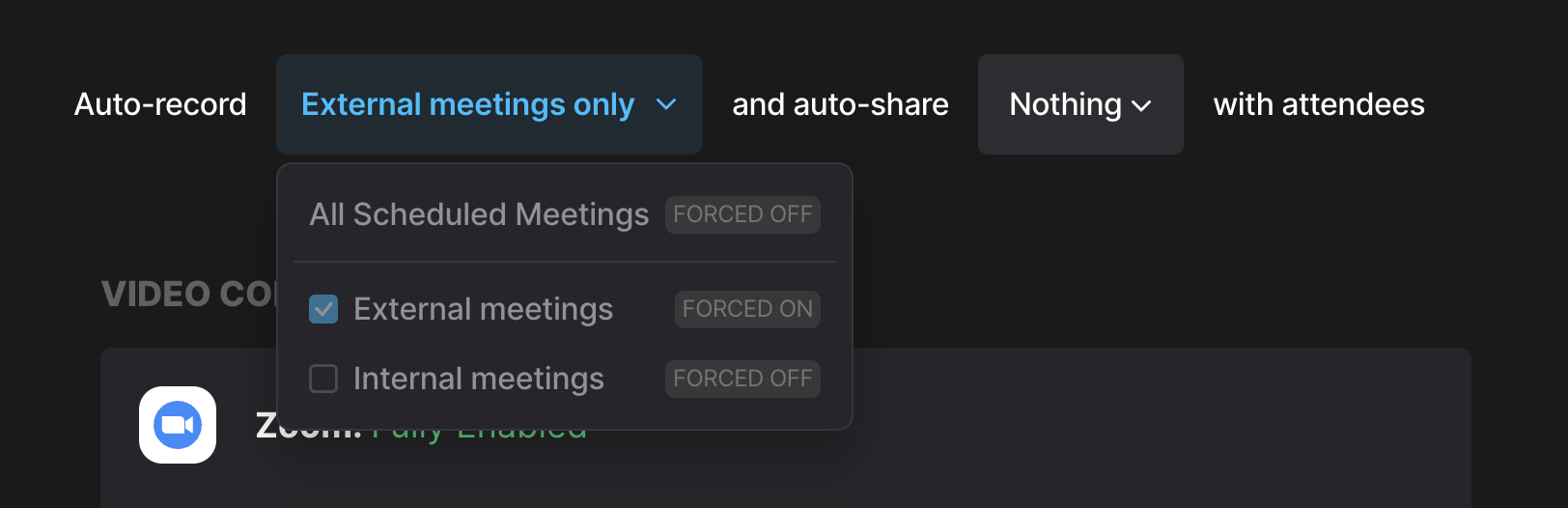
For Visibility settings, Admins can control whether users are allowed to change visibility after a default is applied. If a visibility setting is enforced by an admin, users may see that the related option is locked or unavailable. For example, if an admin requires certain external meetings to be visible to a team, a user may not be able to make those meetings private.
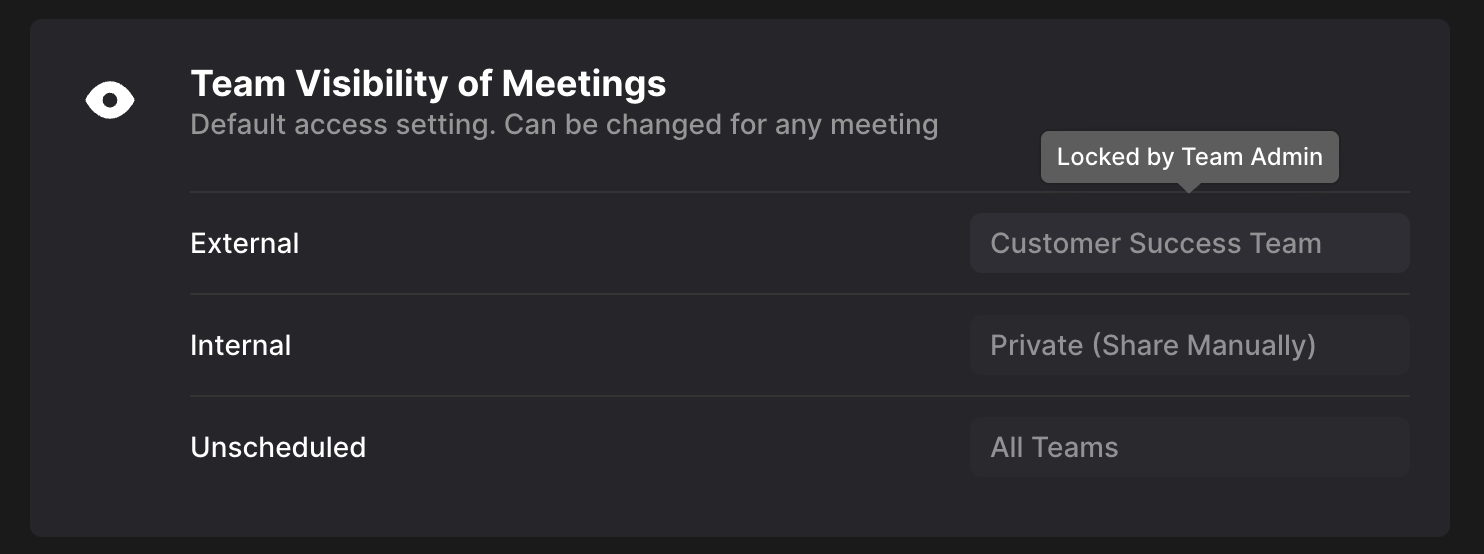
How can Admins tell if users can override admin settings?
A lock icon next to a Visibility setting indicates that an Admin has limited or removed users’ ability to change that setting. If a setting is set to “User Choose” no lock icon will appear next to it.
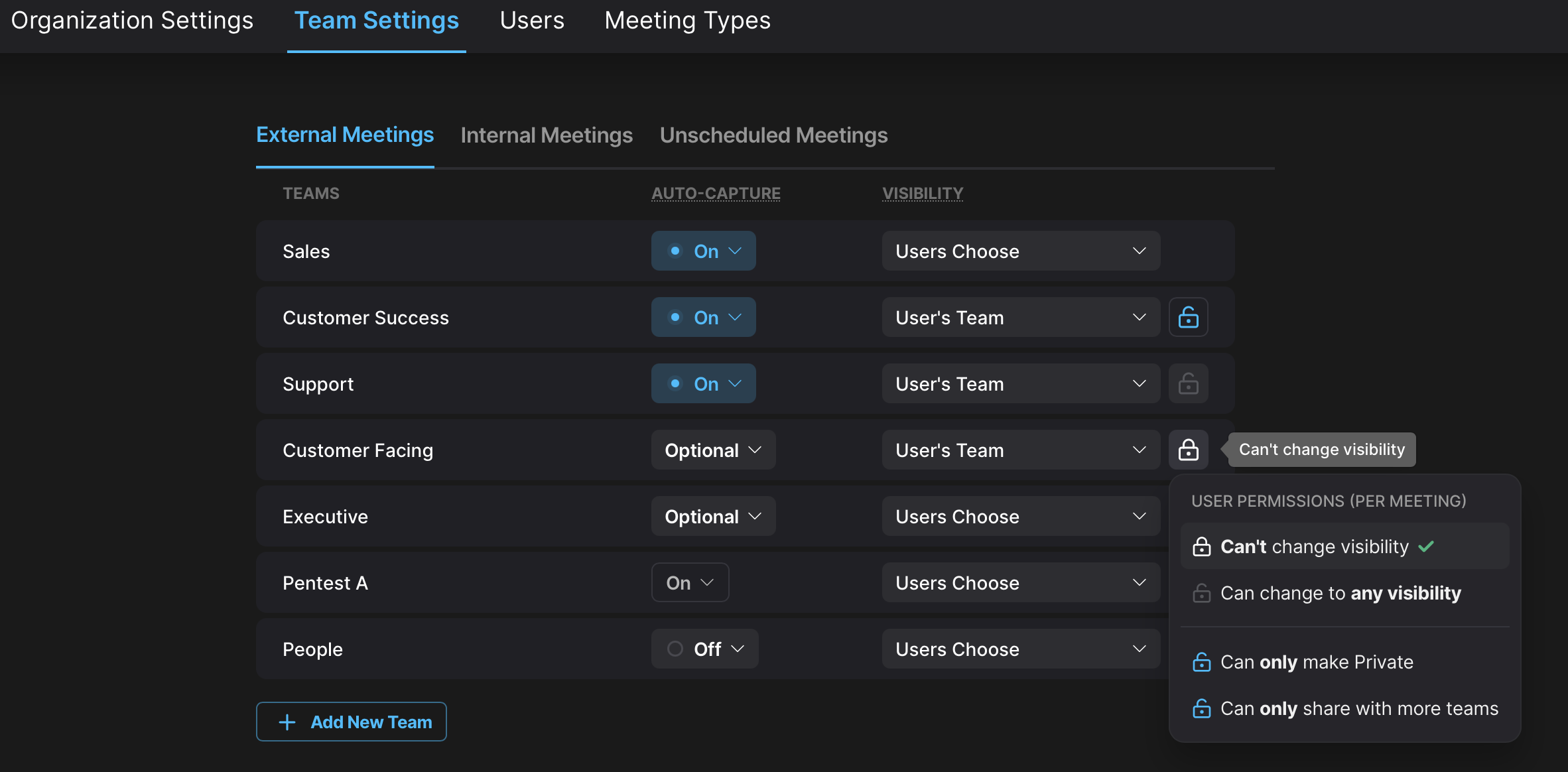
Different lock icons indicate varying levels of control that users have to change the admin-set visibility default.
White lock = users can’t change the meeting’s visibility at all.
Grey unlock = users can change it to any visibility.
Blue semi-lock = users have limited flexibility. Admins can allow users to only make a meeting private, or only share it with more or less teams.
Depending on the setting selected by the Account Admin, Team Admins can allow users to (on a per meeting basis):
Change to any visibility
Not change visibility at all
Only share with more teams
Only share with fewer teams
Only share with their team
Only make private
Users may also see visibility restrictions when sharing a call. For example, if sharing with additional teams is disabled by a team admin, the user will see that option disabled when they attempt to share the call.
FAQs
What's the difference between auto-capture and visibility? Auto-capture controls whether Fathom automatically captures a meeting. Visibility controls which internal users can see the meeting after it is captured. For example, a meeting could be automatically captured but private by default, or automatically captured and visible to a team.
What makes a meeting External? A meeting is external when at least one participant is from outside your organization. Fathom uses email domains and team membership to determine whether a participant is internal or external.
What makes a meeting Internal? A meeting is internal when all participants use your organization’s email domain or are members of the team account.
What is an Unscheduled meeting? An unscheduled meeting (aka, an “impromptu” meeting) is a meeting that is not matched to a scheduled calendar event.
Do Auto-capture changes apply to meetings already in progress? No. Changes to auto-capture settings apply to future meetings.
Can Team Settings differ from Organization Settings? Yes. Team Settings can be configured separately from Organization Settings, or they can mirror the organization’s current setting.
Can users override Team or Organization settings? It depends on how the admin configures the setting. Admins can allow users to choose, limit what users can change, or prevent users from changing auto-capture and per-meeting visibility settings.
What do the different lock icon colors mean? The lock icon shows what users are allowed to change. A white lock means users can’t change the meeting’s visibility at all. A grey unlock icon means they can change it to any visibility. A blue semi-lock icon means they have limited flexibility; admins can allow users to only make a meeting private, or only share it with more or less teams.