
Using Trackers
Trackers help you find and organize important moments across your team’s calls, so you don’t have to manually search through recordings or transcripts.
Use Trackers to monitor patterns across your team over time, such as:
Competitor mentions
Pricing discussions
Feature requests
Customer pain points
Churn or renewal risk
Customer testimonials
Trackers are especially useful when you know the type of moment you care about, but not the exact words someone might use. For example, a customer may not say “I’m frustrated.” They might say “we’re running out of patience” or “this is becoming a blocker.” Trackers use AI to find moments based on meaning, not just exact keywords. That means Fathom can identify broader themes even if the exact phrase wasn’t spoken.
Who can use Trackers
Trackers are available on Team pricing plans. Access also depends on a user’s view access. To see and use Trackers, a user must have view access to at least one team.
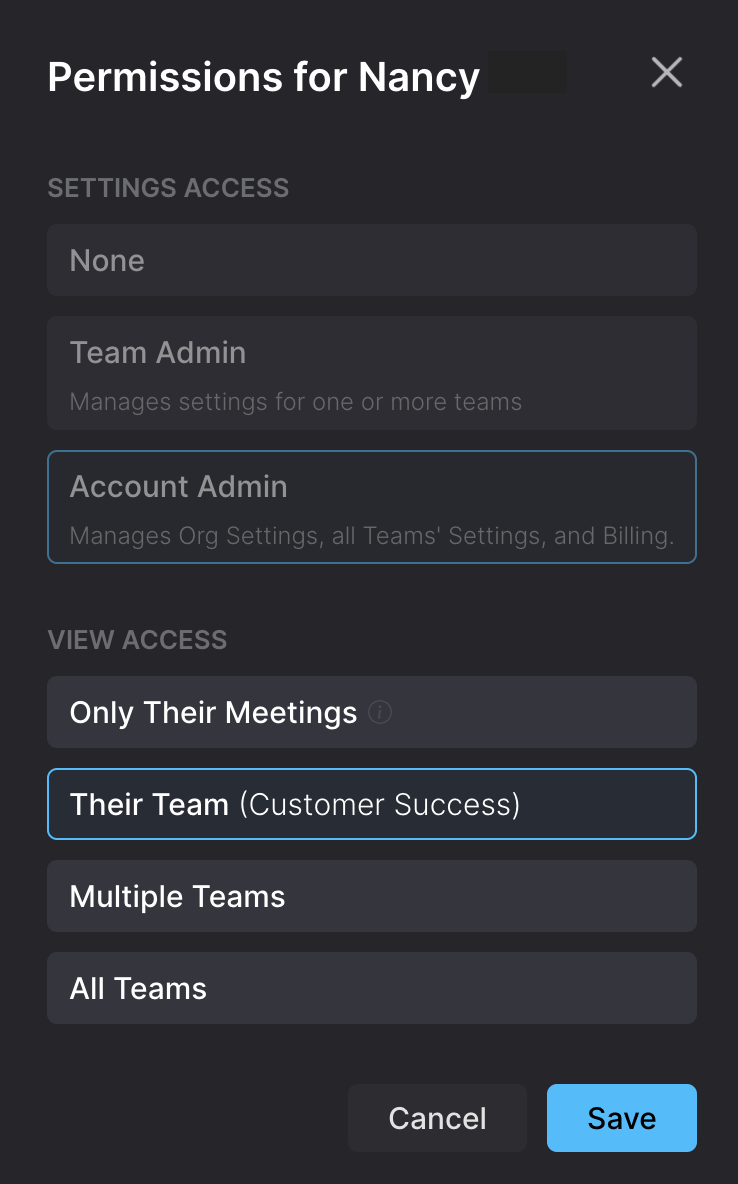
Tracker results are permission-based. Tracker matches only appear for calls you have permission to view. If a call isn’t visible to you in Fathom, its Tracker matches won’t be visible to you either.
Fathom role | Tracker access |
Account Admins and Team Admins | Can create Trackers, subscribe to Trackers they can see, and manage Trackers available to their team or workspace. |
Team Members | Can create Trackers, subscribe to Trackers they can see, and edit Trackers they created |
Users with “Only their meetings” view access | Do not see the Trackers tab |
Users not on a Teams plan | Do not have access to Trackers |
Trackers vs. Alerts
Trackers and Alerts are useful for different jobs. Use Trackers when you want to find a concept theme, or intent (e.g., customers considering switching to a competitor). Use Alerts when you want to find every mention of an exact word or phrase (e.g., a specific competitor name).
How to create a Tracker
Click Trackers from the menu.
Click Create Tracker or start from a template
Describe what you want to track, or select an example search term on the right to autofill your search query. Be specific about the type of moment you want Fathom to find. Examples:
“Customer mentions that they’re considering a competitor”
“Customer asks about pricing discounts”
“Customer shares a feature request”
Select the team(s) whose calls this Tracker should monitor
Choose which meeting types this Tracker should monitor: internal meetings, external meetings, or both.
Choose whose speech this Tracker should monitor: said by anyone, internal attendees, external attendees, or me.
Click Preview Results to make sure the Tracker is capturing the right moments. Adjust your parameters on the right if the Preview Results are not surfacing the right moments. When you’re happy with the results, click Continue
Choose if “Anyone in your workspace” can see this tracker or if it should only be visible to you (Private).
Choose your notification settings. You can toggle on/off email alerts, and decide if you want to receive emails weekly, daily or in real-time. If you have Slack connected, choose the Slack channels that will be notified when Tracker results are ready.
Click Create Tracker. Your Tracker will begin scanning new calls going forward. Trackers do not scan past calls retroactively.
Watch the video demo below to see how to create a Tracker.
Creating a Tracker from AI Search
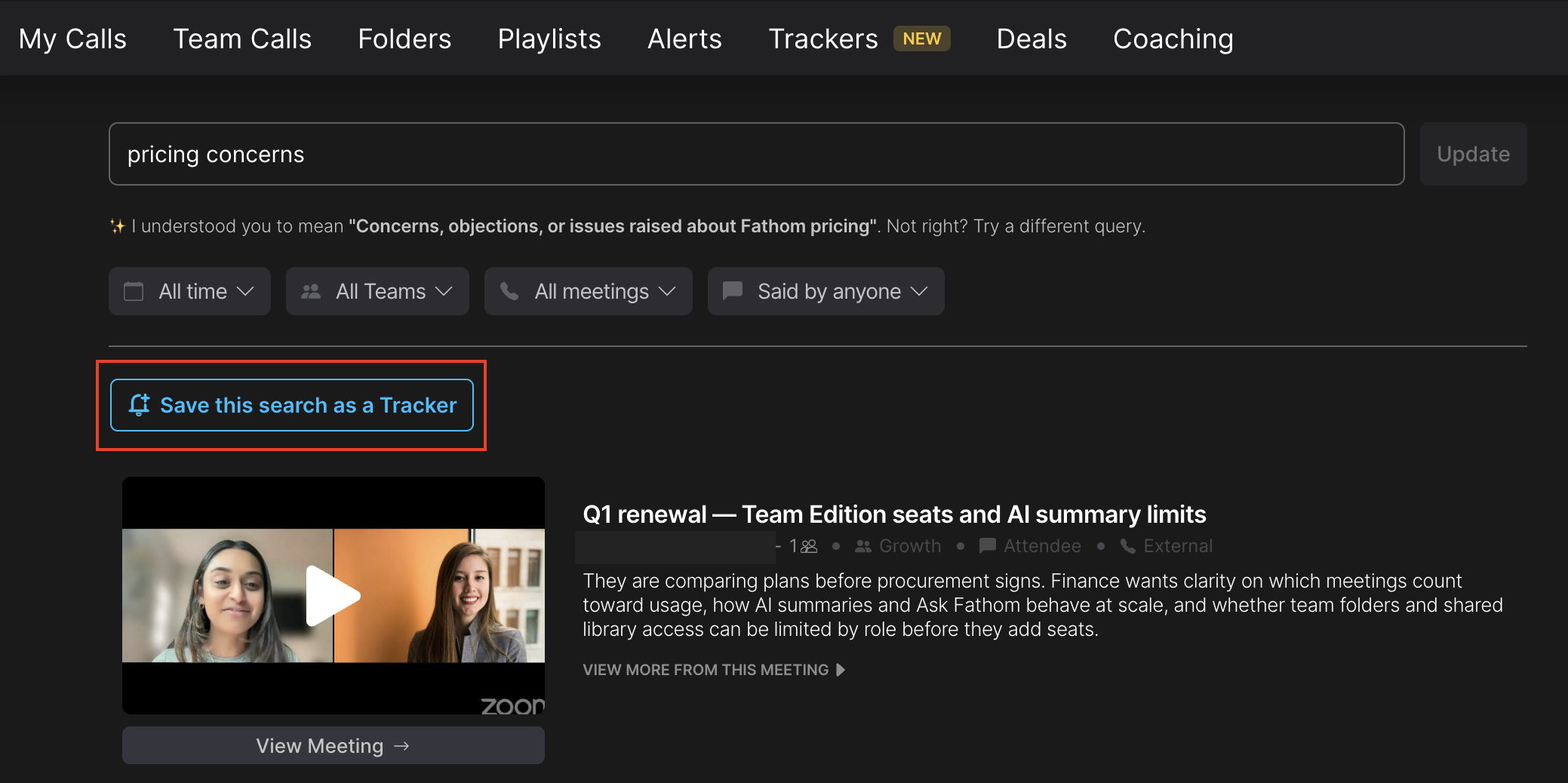
You can also create a Tracker from an AI Search result. This is useful when you perform a search that you want Fathom to keep monitoring automatically.
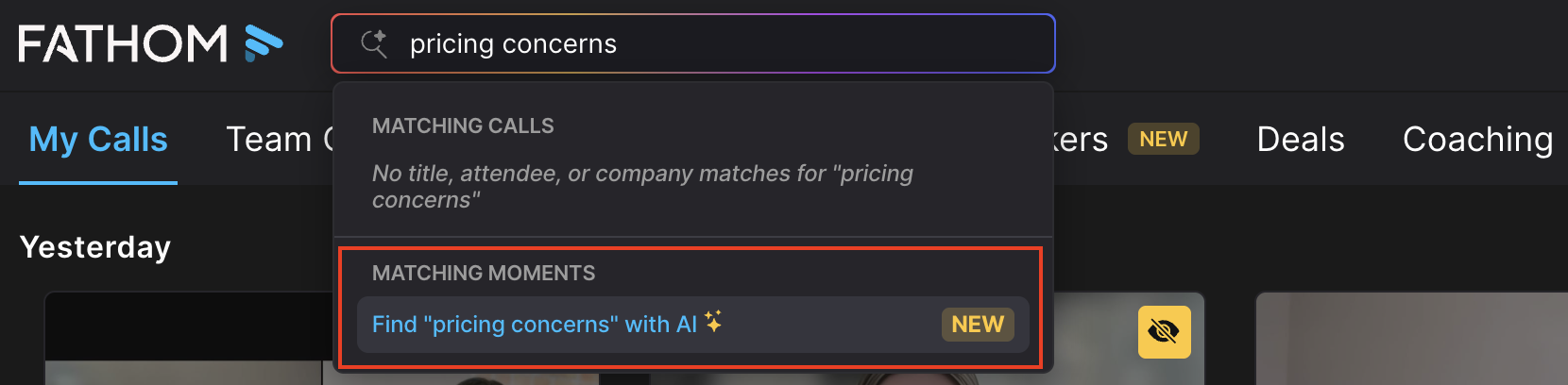
Enter your search into Fathom’s AI search bar at the top
Click on the search term under Matching Moments to search with AI
On the results page, select Save this search as a Tracker
Best practices
Be specific
A clear Tracker usually performs better than a broad one. Instead of “Pricing” try “Customer says pricing is too expensive or asks for a discount”
Track moments your team can act on
Good Trackers help your team make decisions or follow up quickly. Examples:
Sales leaders tracking common objections
Product teams tracking feature requests
Customer success teams tracking churn risk
Support teams tracking bugs or confusing product experiences
Route matches to the right place
If Slack notifications are available, send Tracker matches to the team that can act on them. For example:
Feature requests → Product channel
Bugs → Support or Engineering channel
Churn risk → Customer Success channel
Review and refine your Trackers
Trackers use AI, so it’s worth reviewing results over time. If a Tracker returns too many irrelevant matches, make the description more specific. If it misses useful moments, broaden the description or add examples of what should count as a match.
Set up Trackers before key initiatives
Because Trackers only scan future calls, create them before launches, campaigns, renewals, or customer conversations where you want to monitor patterns.
Choose the right notification cadence
Not every Tracker needs an immediate alert. Use real-time notifications for urgent topics, such as churn risk, security concerns, or major product issues. Use daily or weekly digests for themes that are useful to review in batches, such as feature requests, testimonials, or customer objections.
FAQs
Will Trackers scan past calls? No. Trackers start matching on calls recorded after the Tracker is created.
Why don’t I see the Trackers tab? Trackers are available on Teams plans, but users also need view access to at least one team or All Teams. If your view access is set to “Only their meetings”, you will not see the Trackers tab.
Can standard team members create Trackers? Yes. Team members with access to Trackers can create their own Trackers.
Can I subscribe to someone else’s Tracker? Yes, if the Tracker is visible to you. You will only see matches from calls you have permission to view.
What’s the difference between a Tracker and a Playlist? Trackers automatically find moments based on a theme. Playlists are curated collections of moments or highlights that someone manually assembles to share.
What’s the difference between Trackers and Alerts? Alerts look for specific words or phrases. Trackers look for the meaning behind what was said. Use an Alert when you know the exact term you want to monitor. Use a Tracker when you want to catch a broader theme.