
How to Test a Webhook (Troubleshooting Guide)
This guide will help you test whether your endpoint can successfully receive webhooks from Fathom. It includes some initial configuration checks and explains how to send a test webhook from your API key configuration page.
Note: For more information about creating and configuring webhooks, see the Fathom API documentation.
Initial Checks (Before Testing)
Please confirm the following:
Your endpoint is configured as a POST endpoint
Not GET
You're using the Production URL
Not a Test URL
If using n8n:
Use the Production URL, not the Test URL.
Confirm that the workflow toggle is green and displays Active.
Confirm that the webhook URL shown in Fathom matches the intended destination.
Send a Test Webhook from Fathom
In Fathom, open User Settings → API Access.
Open the API key configuration page associated with your webhook.
Click Send Test Payload.
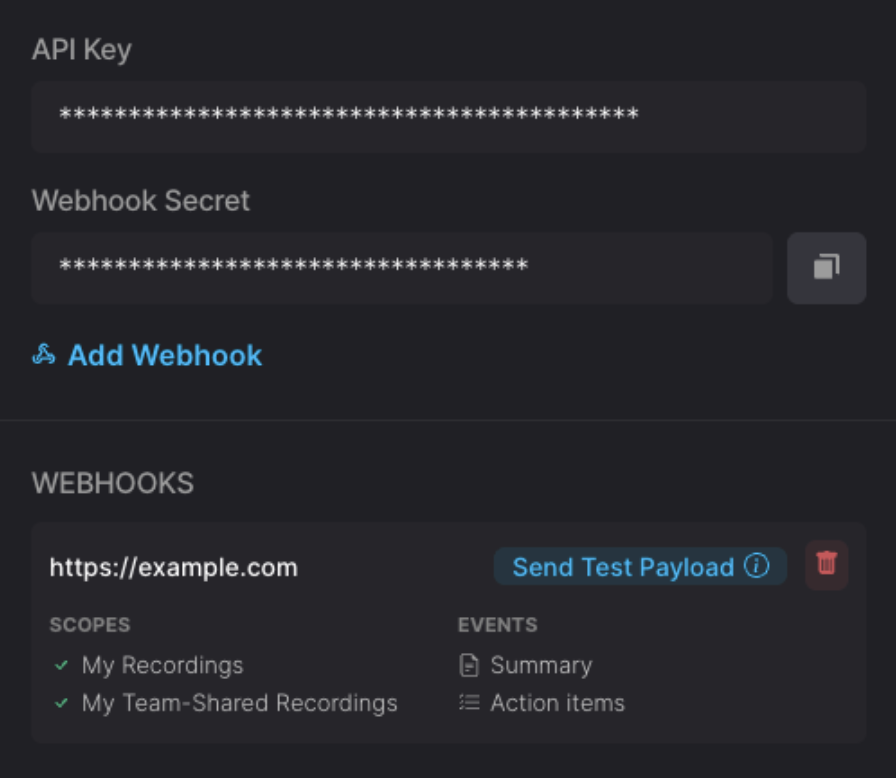
Fathom will send a test webhook to the configured destination using an example payload from one of your meetings.
Understanding the Test Result
If your endpoint returns a successful 2xx response, such as 200 or 202, it confirms that:
The endpoint received the request
The server accepted it
A successful response does not necessarily confirm that:
Every value was processed as expected
Your downstream logic executed successfully
The full workflow completed successfully
After sending the test, check your endpoint or workflow’s execution history to confirm that the payload was processed correctly.
If Fathom successfully sends the test but the downstream workflow does not complete, review the receiving platform’s logs and configuration or contact that platform’s support team for assistance. Fathom Support can help confirm Fathom’s webhook configuration and delivery but does not configure or debug third-party workflows.